 Cued
Cued
How to use a teleprompter on Zoom, Google Meet and Teams calls
By Harshit Maurya, maker of Cued · Updated 16 October 2026
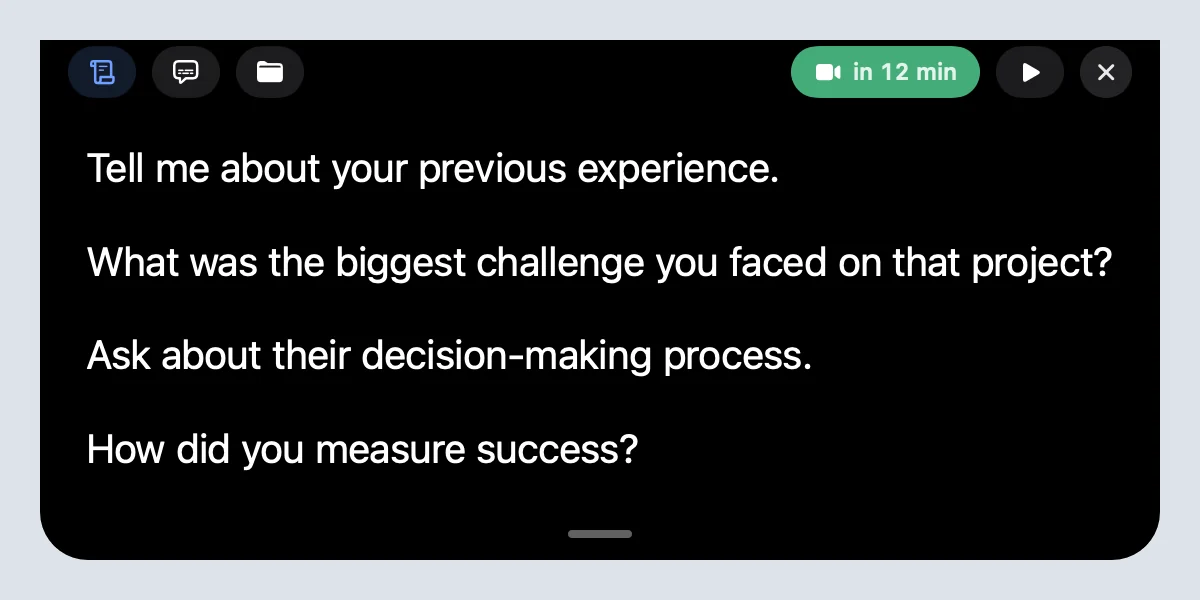
To use a teleprompter on a Zoom, Google Meet or Microsoft Teams call, put the script right under your camera, hide your own video so you are not distracted by it, and use a prompter that stays out of screen sharing. On a MacBook, Cued does this by showing your talking points in the notch, next to the lens, scrolling at your pace and hidden from screen sharing, so the other people only see you looking at them.
Which teleprompter setup works best for calls?
A call is not a recorded video. You are talking with people, you may need to share your screen, and you cannot do a second take. That changes which setup works.
| Setup | Eye contact | Survives screen sharing? | Extra hardware |
|---|---|---|---|
| Notch teleprompter on a MacBook (Cued) | Text sits beside the lens | Yes, hidden from capture | None |
| Floating prompter window under the camera | Good if you drag it to the top | Only if the app hides itself | None |
| Notes on a second monitor | Poor: you look away from the camera | Yes, if you share one screen only | A second screen |
| Glass prompter in front of a webcam (for example Elgato Prompter) | Best: you look through the glass at the text | Yes, it is a separate screen | A prompter and a camera mounted behind it |
If you take most calls on a MacBook, the notch is the simplest option: nothing to buy, nothing to set up before each call, and nothing to hide when you share.
How to use a teleprompter on a video call
- Write short prompts. One idea per prompt, in chunks of about five to seven words. A blank line between prompts lets you jump from one to the next.
- Open the meeting in Cued. Upcoming calls from Google Calendar and your Mac's Calendar are listed on Home. The notch is ready 30 minutes before.
- Show it in the notch. Press Notch on Home, or ⌥T. Your script appears under the camera.
- Set up the call app. Hide your own video and pin the person you are talking to (see the settings below).
- Press play when you start talking. Choose Slow, Normal or Fast. Point at the notch to hold a line; move away to carry on.
- Share your screen as normal. The notch is left out of screen sharing, so your script stays private.
Zoom, Google Meet and Teams settings that help
Two settings make any teleprompter easier to use. First, hide your own video: watching yourself pulls your eyes to the middle of the screen. Second, pin the person you are talking to, so their face does not jump around the screen when someone else speaks. Both change only your view; the others still see you as normal.
| App | Hide your own video (only for you) | Pin someone (only for you) |
|---|---|---|
| Zoom | Hover over your video, click the ⋯ button, choose Hide Self View | Hover over their video, click the ⋯ button, choose Pin |
| Google Meet | Hover over your tile, More options → Remove this tile, then Minimize the floating view | Hover over their tile, click Pin, choose For myself only |
| Microsoft Teams | View → More options → Hide me (new controls: More actions → Settings → Hide me) | On their video, More options → Pin for me |
Teleprompter.com also suggests pinning the most important person so their video sits directly under your webcam. On a MacBook, move the call window to the top of the screen, just below the notch, so their face and your notes are both close to the lens.
What to do when you share your screen
This is where most call teleprompters fail. If you share your whole screen, a normal prompter window is shared with it, and everyone can read your script. If you share a single window instead, the prompter is safe, but the shared window often covers it.
- With Cued, the notch is excluded from screen capture, so you can share the whole screen and still read your notes.
- With any other prompter app, share a single window, not the desktop, and check what others see before the call.
- With slides, PowerPoint Live in Teams shows the presenter the slides with notes next to them, which is often enough for a talk.
- Do a test: start a call with yourself on another device, share your screen and look at what the other side sees.
How fast should the teleprompter scroll on a call?
Slower than you think. Teleprompter.com puts natural conversation at 130 to 150 words per minute and suggests turning the scroll down by 10 to 15% for live calls, because people interrupt and you pause to listen. In Cued, start at Normal, and point at the notch whenever someone else is talking: the text holds still until you look back.
Which call apps does it work with?
The teleprompter works over any app. Cued also recognises calls in Google Meet, Zoom, Microsoft Teams, FaceTime, Webex and Slack, so it can record and transcribe them when they start.
Tips for sounding natural
- Write talking points, not paragraphs; you will speak more naturally. Elgato gives the same advice for its Prompter.
- Know your first sentence well enough to say it without reading.
- Highlight the one number or name in each prompt that you must not get wrong.
- Use the arrow keys to skip ahead when the conversation moves on.
- Look up from the script at the end of each point, especially when you ask a question.
Questions
Does Zoom have a built-in teleprompter?
No. Teleprompter.com's Zoom guide says Zoom does not include a native teleprompter, so you need a separate app or a hardware prompter.
Does Microsoft Teams have a teleprompter?
Not for live calls. PowerPoint Live in Teams shows a presenter their slide notes, and PowerPoint's Record window has a Teleprompter view, but that one is for recording a presentation.
Can people on the call see my teleprompter?
Not with Cued. Its notch is excluded from screen sharing and screen recordings. With other apps, it depends on whether they hide themselves from capture.
Will it look like I'm reading?
Much less than notes elsewhere on screen, because the text sits right under the camera, so your eyes barely move.
Do I need to install anything in Zoom or Teams?
No. Cued is a Mac app; nothing joins or plugs into the call.
How much does it cost?
Cued is a one-time purchase, not a subscription: $9 for the first 50 founding members, then $29 with a year of updates.
Try Cued on your next call. Your script in the notch, your call recorded and summarised on your Mac.
Download for MacSources
- How to use a teleprompter on Zoom, Teleprompter.com, 8 June 2026
- Using Prompter for Zoom and video meetings, Elgato
- Showing and hiding your video in a meeting, Zoom Support
- Pinning participant videos in a meeting, Zoom Support
- Learn how to view people in Google Meet, Google Meet Help
- Pin or mute Google Meet participants, Google Meet Help
- Use video in Microsoft Teams, Microsoft Support
- Share slides in Teams meetings with PowerPoint Live, Microsoft Support
- Record your presentation (Teleprompter view), Microsoft Support
Related guides
- A teleprompter for Mac that lives in the notch
- How to read notes on a video call without looking away
- How to see your notes while sharing your screen
- The best teleprompter apps for video calls, compared
- How to use a sales call script on Zoom without sounding scripted
- Can you use notes in a video job interview?