 Cued
Cued
How to see your notes while sharing your screen
By Harshit Maurya, maker of Cued · Updated 21 October 2026
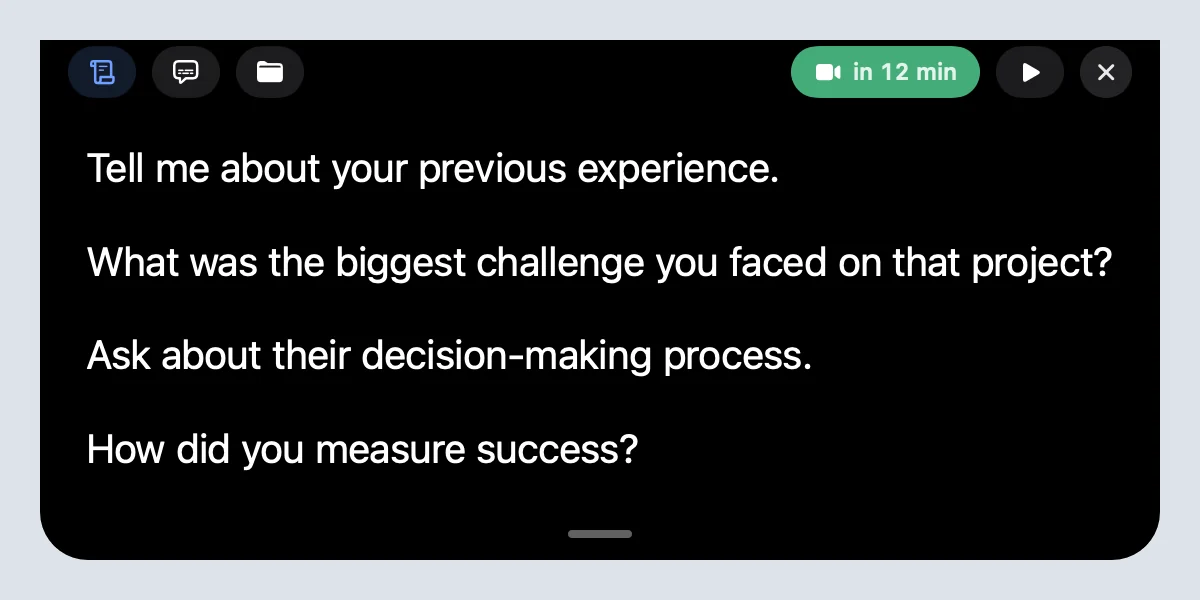
To see your notes while sharing your screen, share a single window or browser tab instead of the whole screen and keep the notes in a different window, or put the notes on a second display. For slides, use presenter view on a second screen. On a single MacBook screen, the simplest way is a notes window that macOS leaves out of screen capture. Cued shows your notes in the MacBook notch, right under the camera, and hides them from Zoom, Google Meet, Teams and screen recorders, even when you share the entire screen.
Why is this hard on one screen?
When you share your entire screen, the audience sees everything on it: your notes window, your notifications, the tab you switch to. When you share one window, your notes can stay private, but every time you click into the notes, the shared window goes behind them, and it is easy to share the wrong window by mistake. And wherever the notes are, you look away from the camera to read them, which on a video call looks like looking away from the person.
What are your options?
| Method | Works on one screen | Notes near the camera | Main risk |
|---|---|---|---|
| Share one window, notes in another | Yes | No | Clicking into notes hides the shared window; easy to share the wrong one |
| Share a browser tab (Google Meet) | Yes | No | Only works when what you present is in a browser tab |
| Zoom 'portion of screen' | Yes | Only if you keep notes at the top | Notes that drift into the rectangle are shown |
| Second monitor for notes | No | No, you look sideways | Needs extra hardware and desk space |
| Slides presenter view | Best with two screens | No | Only for slide decks |
| Cued's notch, hidden from capture | Yes | Yes, under the lens | None: the notch is never captured |
How do you do it in Zoom, Google Meet and Teams?
- Zoom: in Share Screen, pick a single application window instead of the desktop, or share a portion of the screen with a resizable rectangle. Zoom draws a green border around what is being shared, so you can see at a glance what the audience sees.
- Google Meet: choose Present now, then A window or A tab instead of Your entire screen. A tab is the tidiest: it shares that tab's audio and nothing else, and 'Share this tab instead' switches tabs without stopping.
- Microsoft Teams: select Share in the meeting controls and pick a window rather than your entire screen. Microsoft suggests a window when you only need to show one thing, and closing sensitive apps and turning off notifications first.
- For slides, Google Slides has Presenter view with speaker notes, and its own help notes that on a single monitor you cannot use Presenter view and Full screen at the same time. With one screen, present the slides in a window and keep the notes elsewhere.
How do you do it with Cued?
- Write the notes. Open the meeting in Cued and type your points in the Teleprompter tab. Keywords work better than sentences.
- Share as usual. Share your whole screen or a window in Zoom, Meet or Teams. It does not matter which.
- Read from the notch. Your points sit under the camera and scroll by themselves at one of three speeds, or step through them with ⌃⌥↓ and ⌃⌥↑. Point at the notch to pause. The audience sees your shared screen without them.
- Attach what you will show. Attach a file or link to a line of your notes, so it is one click away when you reach that point.
If you want to show the notch in a demo or tutorial, Settings has a switch that allows it in screen captures. Turn it back off afterwards.
Cued needs a Mac with Apple silicon and macOS 15 or later, and is designed for MacBooks with a notch.
What should the notes say?
When you are presenting, you already have the slides or the product on screen. Your notes only need what is not on screen:
- The order you will show things in, one word each.
- The one number or result you must not forget to say.
- The question you will ask before moving on.
- Where you will stop and invite questions.
- The next step you want at the end.
A checklist before you share
- Close what is private. Other clients' work, messages, email.
- Turn on Do Not Disturb. So no notification appears on the shared screen.
- Decide what to share. A window or tab if you can; the entire screen only if you must.
- Check your notes are not in the shared area. Or keep them in the notch, where they never are.
- Look at the green border or preview. Confirm the audience sees what you think they see.
Questions
Will Zoom show my notes if I share my entire screen?
Yes, if the notes are an ordinary window. Not if they are in Cued's notch: macOS leaves the notch out of screen capture, so Zoom, Meet, Teams and recorders do not see it.
Can I do this without a second monitor?
Yes. Share a single window or tab and keep notes in another window, or keep them in Cued's notch, which is on the MacBook's own screen right under the camera.
Can I use Google Slides presenter view on one screen?
Partly. Google's help says that on a single monitor you can't use Presenter view and Full screen at the same time, so present the slides in a window instead.
How do I check what the audience can see?
Zoom draws a green border around the shared area. In Meet, sharing a tab or a window limits what is shown to that tab or window.
How much does Cued cost?
Cued is a one-time purchase with no subscription: $9 for the first 50 founding members, then $29 with a year of updates. Download it from getcued.pro and pay inside the app after a quick setup.
Try Cued on your next call. Your script in the notch, your call recorded and summarised on your Mac.
Download for Mac