 Cued
Cued
How to have the right file ready during a client call
By Harshit Maurya, maker of Cued · Updated 21 October 2026
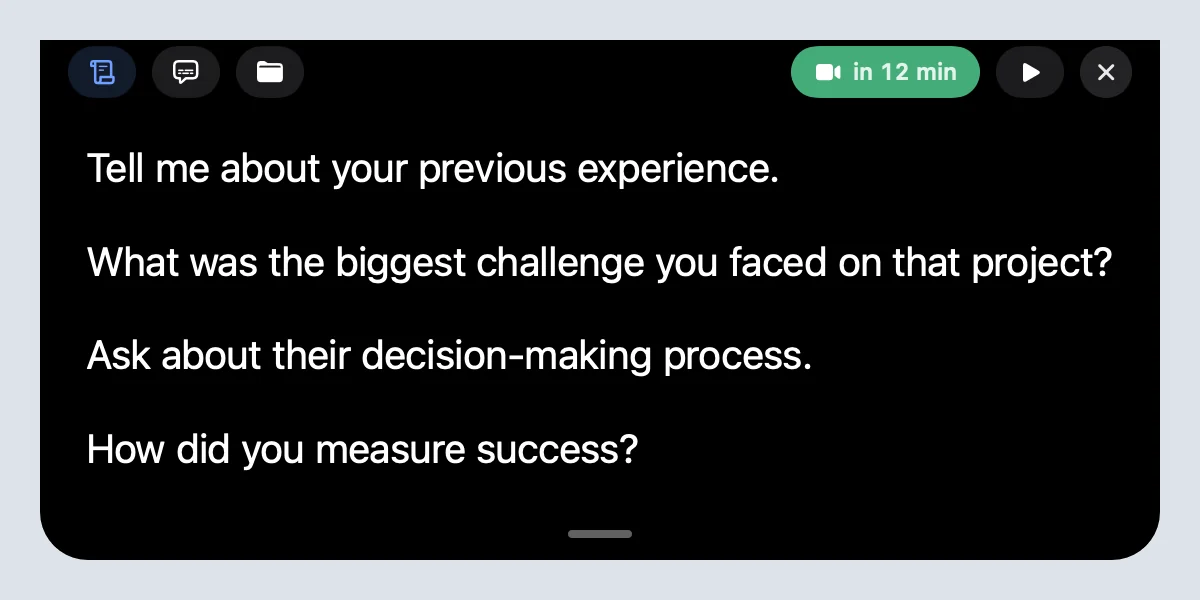
To have the right file ready during a video call, collect the files and links for that meeting before it starts and keep them in one place you can open in one click, not scattered across tabs, Downloads and Drive. Share a single window rather than your whole screen when you can, and close anything private first. Cued, a Mac app that handles your whole online meeting, keeps every meeting's files, documents, images and links in the MacBook notch during the call, so you can open the proposal or the latest draft without searching while the client watches. The notch is hidden from screen sharing.
Why does searching for files look so bad on a call?
Because everyone is watching you do it. The client asks to see the latest version. You are sharing your screen, so they watch you scroll through twenty tabs, open the wrong folder and scan your Downloads. Ten seconds feels like a minute, the conversation stalls, and it looks unprepared even when the work is good.
It can also show more than you meant to. A shared screen shows your other tabs, your file names, your notifications and sometimes another client's work. Advice from business-communication courses is consistent: open the right files before the call and close what you would not want shared.
What should you prepare before a client call?
Think about what the client is likely to ask for, and have it open or one click away before you join. For most client calls that is a short list:
- The latest version of the work you are discussing, and the one before it if they may compare.
- The proposal, statement of work or contract, in case scope or price comes up.
- Your rate card or price sheet, if this is a sales or renewal call.
- Links you will paste into the chat: a Figma file, a staging site, a shared folder.
- Your own notes: the three things you need to say and the questions you need answered.
Name files so you can recognise them at a glance: client, project, version, date. 'Northbay homepage v3 14 Oct' is easier to find on a call than 'final_final2'.
Which screen-sharing option is safest?
Share the smallest thing that does the job. Zoom lets you share your entire desktop, one or more specific applications, or a portion of your screen with a resizable rectangle, and shows a green border around whatever is being shared. Google Meet offers your entire screen, a window or a browser tab. Sharing one window or tab means the client only sees that, even if you switch to look for something else.
| What you share | What the client sees | Good for | Watch out for |
|---|---|---|---|
| Entire screen | Everything, including notifications and other windows | Moving between several apps | Private tabs, file names and messages |
| One window or app | Only that window | Walking through one document or site | Opening a file in a different app does not show |
| A browser tab (Meet) | Only that tab, with its audio | Web apps, slides, videos | Other tabs stay private, so switch with 'Share this tab instead' |
| Portion of screen (Zoom) | A rectangle you choose | A demo in one part of the screen | Anything that moves into the rectangle |
Whatever you share, turn on Do Not Disturb or a Focus mode before the call, so a message from another client does not pop up on screen.
How do you keep files one click away with Cued?
- Make a home for the meeting's files. In Cued, open the meeting from your calendar and drop in documents, images, videos and links. Links in the calendar invite are already there.
- Pin what you use every time. Pin your portfolio, rate card or standard deck and it appears in every meeting, so you never add it again.
- Open from the notch. During the call, hover the notch and choose Files. Media, documents and links are grouped; one click opens a file.
- Link files inside your talking points. Select words in your script and attach a file or link to them. The glyph appears in the notch next to that line, so the file is there exactly when you reach that point in the conversation.
Because the files live with the meeting, they are still there after the call, next to the recording, transcript and summary. When the client asks next month which version you showed, you can find it in the same place.
What is private, and what does the client see?
Files you add are copied into Cued's folder on your Mac and never uploaded. The notch itself is left out of screen sharing and recordings, so the client sees the file you open, not your list of files or your notes. If you want to show the notch in a demo or tutorial, a switch in Settings allows it in screen captures.
Cued needs a Mac with Apple silicon and macOS 15 or later, and is designed for MacBooks with a notch.
A two-minute routine before every client call
- Two minutes before. Open the meeting's files and the one link you will paste. Close other clients' work.
- Focus on. Turn on Do Not Disturb so messages do not appear on a shared screen.
- Decide what to share. One window if you can; the whole screen only if you must move between apps.
- After the call. Add anything new the client sent, so the next call starts with it.
Questions
Can the client see the notch when I share my screen?
No. Cued's notch is left out of screen capture, so Zoom, Google Meet and Teams do not show it, even when you share the entire screen.
Is it better to share a window or my whole screen?
A window, when you can. The client then sees only that window. Share the whole screen only when you need to move between several apps, and close private things first.
What kinds of files can I add to a meeting in Cued?
Documents such as PDFs, images, videos and links. They are grouped in the notch as Media, Documents and Links.
Are my files uploaded anywhere?
No. They are copied into Cued's folder on your Mac. There is no Cued server.
How much does Cued cost?
Cued is a one-time purchase with no subscription: $9 for the first 50 founding members, then $29 with a year of updates. Download it from getcued.pro and pay inside the app after a quick setup.
Try Cued on your next call. Your script in the notch, your call recorded and summarised on your Mac.
Download for Mac