 Cued
Cued
How to see your speaker notes while sharing slides on Zoom (one screen)
By Harshit Maurya, maker of Cued · Updated 16 October 2026
On one screen, don't share your whole screen: play the slideshow in a window and share only that window, and keep your notes in another window. PowerPoint for Mac and Keynote can both play a slideshow in a window, and Google Slides can be shared as a single tab. In Teams, PowerPoint Live shows your notes next to the slides, and in Google Meet you can open Slides speaker notes inside the call on some Workspace plans. If you share the entire screen, people see whatever you see, notes included.
Why your notes are visible to the other party
Presenter view is built for two displays: the audience sees the slides on one, you see notes on the other. Microsoft's PowerPoint guide puts it as you see your notes while the audience sees only your slides. On a single laptop screen there is only one display, so when you share "Screen" or "Entire desktop", the call sends exactly what you see, presenter view and notes included. That is the problem behind questions like "when I share my screen in presenter view, my notes are visible to the other party".
The fix is to share less. Zoom lets you share the entire desktop, one or more specific application windows, or a portion of the screen. Google Meet offers A tab, A window or Your entire screen. Teams lets you present your entire screen or a window. Share only the window with the slides.
Your options on one screen
| Slides in | One-screen method | Where your notes are | Watch out for |
|---|---|---|---|
| PowerPoint (Mac) | Set Up Slide Show → Browsed by an individual (window), then share that window | In the editing window beside the slideshow | Clicking into the wrong window during the talk |
| Keynote | Play → In Window, then share the slideshow window | In the presenter display window | Sharing the presenter display by mistake |
| Google Slides | Share the slideshow tab or window, not the screen | Presenter view on your side | Meet's speaker-notes button needs certain Workspace plans |
| PowerPoint in Teams | Share → PowerPoint Live | Next to the slides, in your presenter view | Videos and animations aren't recorded |
| Any app, notes in the notch (Cued) | Share whatever you like, even the whole screen | In the MacBook notch, under the camera | Your talking points only, typed into Cued |
PowerPoint on a Mac: play in a window and share that window
- Set the slideshow to play in a window. On the Slide Show tab, click Set Up Slide Show and choose Browsed by an individual (window).
- Start the slideshow. It opens in its own window instead of filling the screen. Keep your editing window, with the Notes pane showing, next to it.
- Share only the slideshow window. In Zoom, click Share and pick the slideshow window under the application windows, not the desktop. In Teams or Meet, choose to share a window.
- Read and click. Read your notes in the editing window; click the slideshow window to move to the next slide.
If you open Presenter view on a single monitor (from the control bar at the bottom left of Slide Show view), remember that sharing the whole screen would show it to everyone.
Keynote: Play in Window
- Choose Play → In Window. Open the presentation, choose Play → In Window, select the first slide and click Play in the toolbar.
- Find the presenter display. Apple says the slideshow and presenter display open in separate windows. If the presenter display doesn't appear, choose Play → Show Presenter Display in Window.
- Share only the slideshow window. In Zoom, Meet or Teams, share the window showing the slides. Your notes stay in the presenter display, which you don't share.
- Move through the slides. Press Space or the Right Arrow key to advance and the Left Arrow key to go back. Press Esc to stop.
Google Slides: is it possible to see speaker notes and present just your slides in Zoom?
Yes. In Slides, click the down arrow next to Slideshow and choose Presenter view, then share only the browser tab or window that shows the slides, not your entire screen. In Google Meet there is a built-in route: click Present now, choose A tab, pick the Slides presentation, then click the speaker notes button in the presentation controls. Google says that works on several paid Workspace plans (such as Business Standard and Enterprise) and isn't available with personal Google Accounts.
Zoom's Slides as Virtual Background
Zoom can also put your slides behind your video, so people see you in front of the deck instead of a screen share. You need PowerPoint or Keynote (Keynote on a Mac) installed, and Zoom notes that people joining from the web client, a Zoom Room or a third-party device see an ordinary screen share. Zoom's help page doesn't describe showing speaker notes in this mode, so keep your notes in a window you don't share, or in the notch.
Teams: PowerPoint Live
In a Teams meeting, select Share and choose your file under PowerPoint Live (or click Present in Teams from PowerPoint). Microsoft says your slides appear in the meeting with your notes next to them, along with people's video and reactions. Microsoft also notes that recordings don't capture videos, animations or annotations from a PowerPoint Live session.
Notes right under the camera, hidden from sharing
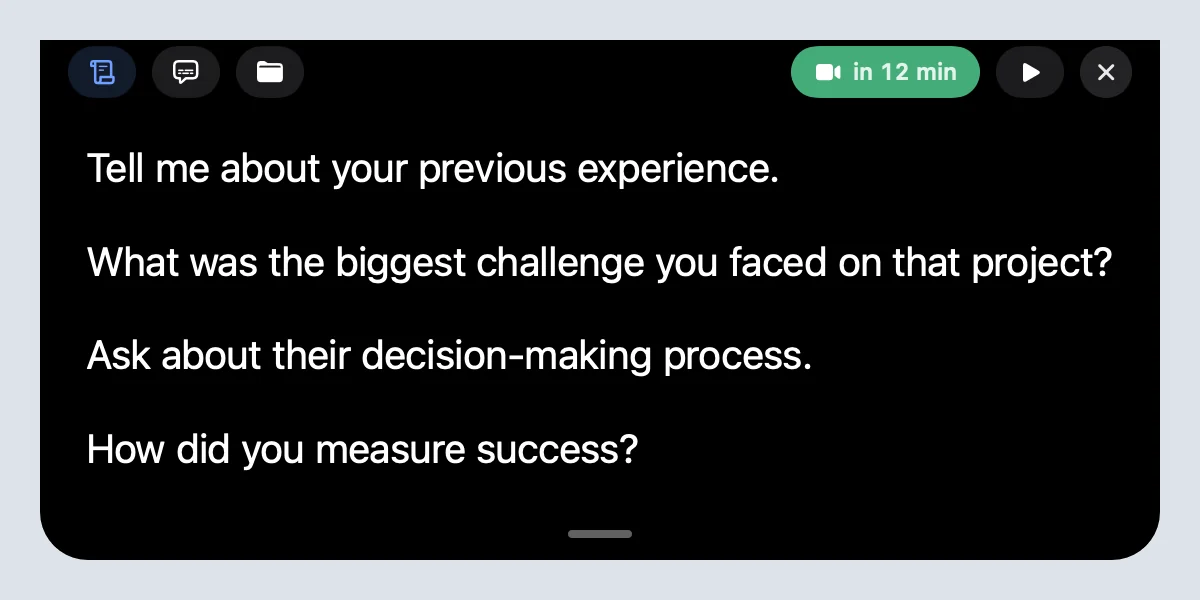
All of the methods above put your notes in a window on the screen, so your eyes leave the camera. Another option is to keep your talking points in the MacBook notch. Cued shows them there, right under the camera, scrolling by itself at three speeds and pausing when you point at it. The notch is left out of screen sharing and screen recordings, so it stays private even if you share the entire screen.
Cued doesn't replace presenter view: it shows the talking points you type into the meeting, not slide thumbnails. Many people use both: the slides shared as a window, the few things they must say in the notch. Cued is a one-time payment, not a subscription.
Cued needs a Mac with Apple silicon and macOS 15 or later, and is designed for MacBooks with a notch. Cued is a one-time payment, not a subscription: $9 for the first 50 founding members, then $29 with a year of updates.
Questions
How do I screen share PowerPoint in presenter view with no notes visible to others?
Don't share the whole screen. Play the slideshow in a window (Set Up Slide Show → Browsed by an individual) and share only that window, or use PowerPoint Live in Teams.
When I share my screen in presenter view, why are my notes visible to the other party?
On one display, presenter view fills the screen you are sharing, so everyone sees it. Share only the slideshow window instead.
Can I see Google Slides speaker notes in Google Meet?
Yes on several paid Workspace plans: Present now → A tab → choose the presentation, then click the speaker notes button. It isn't available with personal Google Accounts.
Will Zoom show my notes if I share my entire screen?
Yes, anything on the shared screen is visible, unless it's in a place macOS leaves out of capture, such as Cued's notch.
Can Cued import my PowerPoint speaker notes?
No. You type or paste your talking points into the meeting in Cued, and they appear in the notch.
How much does Cued cost?
Cued is a one-time payment, not a subscription: $9 for the first 50 founding members, then $29 with a year of updates.
Try Cued on your next call. Your script in the notch, your call recorded and summarised on your Mac.
Download for MacSources
- Start the presentation and see your notes in Presenter view, Microsoft Support
- Set up Slide Show, Microsoft Support
- Present a Keynote presentation on your Mac (Play in Window), Apple Support
- Present slides (Presenter view), Google Docs Editors Help
- View Google Slides speaker notes in Google Meet, Google Workspace Updates, January 2023
- Present during a video meeting, Google Meet Help
- Sharing your screen or desktop on Zoom, Zoom Support
- Sharing slides as a Virtual Background, Zoom Support
- Share slides in Microsoft Teams meetings with PowerPoint Live, Microsoft Support
- Present content in Microsoft Teams meetings, Microsoft Support
- When I share my screen in presenter view, my notes are visible to the other party, Zoom Community
- Is it possible to see speaker notes & present just your slides in Zoom on just a computer? r/GoogleSlides