 Cued
Cued
A teleprompter for Mac that lives in the notch
By Harshit Maurya, maker of Cued · Updated 16 October 2026
Cued is a Mac teleprompter that shows your script in the MacBook notch, right next to the camera, so you keep eye contact while you read. It scrolls on its own at three speeds, pauses the moment you point at it, and is left out of screen sharing and screen recordings, so the people on the call never see it. It is a one-time purchase, not a subscription.
Can you use a Mac as a teleprompter?
Yes. A Mac already has the two things a teleprompter needs: a screen for the words and a camera to look into. What it lacks is the glass of a studio prompter, which puts the text directly in front of the lens. On a Mac you get close to that by putting the words as near to the camera as the screen allows, and by making sure the people watching cannot see them.
There are four common ways to do it, and they suit different jobs.
| Setup | Where the words sit | Hidden when you share your screen? | Best for |
|---|---|---|---|
| Notch teleprompter app (Cued and others) | In the MacBook notch, beside the camera | Yes, if the app excludes itself from capture, as Cued does | Live calls on a MacBook |
| Window teleprompter app | A floating window you drag under the camera | Only if the app hides itself from capture | Recording videos, any Mac |
| PowerPoint's Teleprompter view | Above the slide preview in PowerPoint's Record window | Not for live calls: it is part of recording a presentation | Narrating a recorded slide deck |
| Hardware prompter (for example Elgato Prompter) | On a screen behind glass, in front of the camera | Yes, if you share only your main screen | Studio-style setups with a separate camera |
Why put a teleprompter in the notch?
On a MacBook the camera sits in the notch at the top of the screen. The further your notes are from it, the more your eyes drop, and the more you look like you are reading. Text that hangs just under the camera means a reading glance and a look into the lens are almost the same movement.
Teleprompter.com's guide to using a prompter on Zoom puts a number on it: keep the script within roughly 15 degrees of the camera lens. On a laptop, the notch is the part of the screen closest to the lens, whatever window you have open.
How the Cued teleprompter works
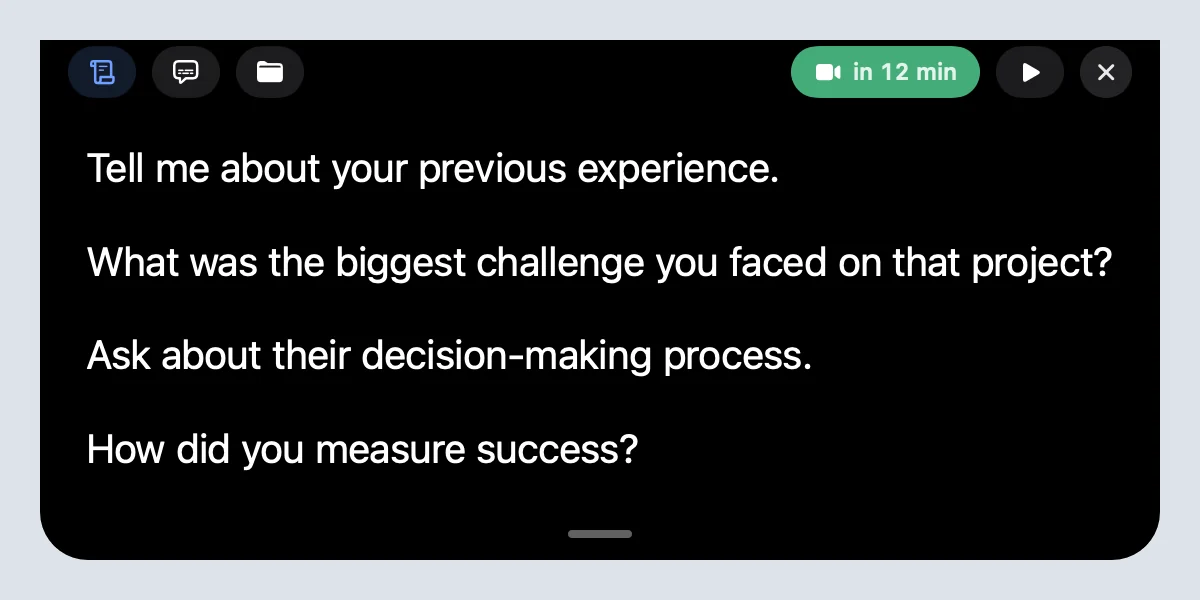
- Write your talking points in a meeting's Teleprompter tab. A blank line starts a new prompt.
- Press play in the notch, or ⌃⌥P from any app, and the script scrolls by itself at Slow, Normal or Fast.
- Point at the notch and the text holds still; move away and it carries on from the same line.
- Use the arrow keys or two fingers on the trackpad to jump between prompts or nudge the text.
- Highlights, links and files can sit inside the script, so the number or the document you need is one click away.
How to set it up on your Mac
- Install Cued. Download it from getcued.pro. It needs a Mac with Apple silicon and macOS 15 or later.
- Open a meeting, or make one. Your calls from Google Calendar and the Mac's Calendar are listed on Home. Each one has its own Teleprompter tab.
- Write the script as short prompts. One idea per prompt. A blank line between prompts lets you jump from one to the next with the arrow keys.
- Show it in the notch. Press Notch on Home, or ⌥T. Your script appears under the camera.
- Do a test run. Read it aloud once at Normal speed. If you catch yourself waiting for the text, switch to Fast; if you fall behind, switch to Slow.
How to write a script you can read in the notch
The notch is small, so the script has to be short. That is a help, not a limit: Elgato's advice for its own Prompter is to use talking points, not full scripts, and to write the way you talk.
- Break sentences into chunks of about five to seven words. Teleprompter.com recommends 5 to 7 word chunks with breath breaks between them.
- Start each prompt with the word you will say first, so you can pick it up at a glance.
- Highlight the one number, name or price in each prompt that you must not get wrong.
- Keep questions you want to ask as their own prompts, so they do not get lost in a paragraph.
- Read it out loud once. If you would not say a line that way, rewrite it.
Is the teleprompter visible when I share my screen?
No. The notch is excluded from screen capture by macOS, so Zoom, Google Meet, Microsoft Teams and screen recorders do not see it. If you want to show it in a demo, there is a switch for that in Settings.
More than a teleprompter
Most notch teleprompters stop at the script. Cued is a meeting app built around it: the same notch holds the meeting's files, it records and transcribes the call on your Mac, and it writes the summary and follow-up afterwards. Your talking points, the call and the recap stay together in one place.
If you only want a teleprompter, a simpler notch app may suit you better; our roundup of notch teleprompter apps compares them. If you want the talking points and the notes from the call in one app, that is what Cued is for.
Questions
Can I use my Mac as a teleprompter?
Yes. Put the script as close to the camera as you can and make sure it is hidden from screen sharing. On a MacBook with a notch, a notch teleprompter like Cued puts the words right beside the camera.
Does Zoom or Teams have a built-in teleprompter?
Teleprompter.com's Zoom guide says Zoom has no native teleprompter. Microsoft PowerPoint has a Teleprompter view in its Record window for recorded presentations, which is not the same as reading notes on a live Teams call.
Does the Cued teleprompter work with Zoom, Google Meet and Teams?
Yes. It sits in the notch above any app, so it works with every call app, and it stays hidden from their screen sharing.
Can I control the speed?
Yes. Choose Slow, Normal or Fast. Pointing at the notch pauses it, and the arrow keys step between prompts.
Does it work on a Mac without a notch?
Cued is designed for MacBooks with a notch. On a display without one, it appears as a small tab at the top centre of the screen.
Is Cued a subscription?
No. Cued is a one-time purchase: $9 for the first 50 founding members, then $29 with a year of updates. Cued needs a Mac with Apple silicon and macOS 15 or later, and is designed for MacBooks with a notch. Download it at getcued.pro.
Try Cued on your next call. Your script in the notch, your call recorded and summarised on your Mac.
Download for Mac