 Cued
Cued
Meeting recorder for Mac: how to record Zoom, Google Meet and Teams calls
By Harshit Maurya, maker of Cued · Updated 16 October 2026
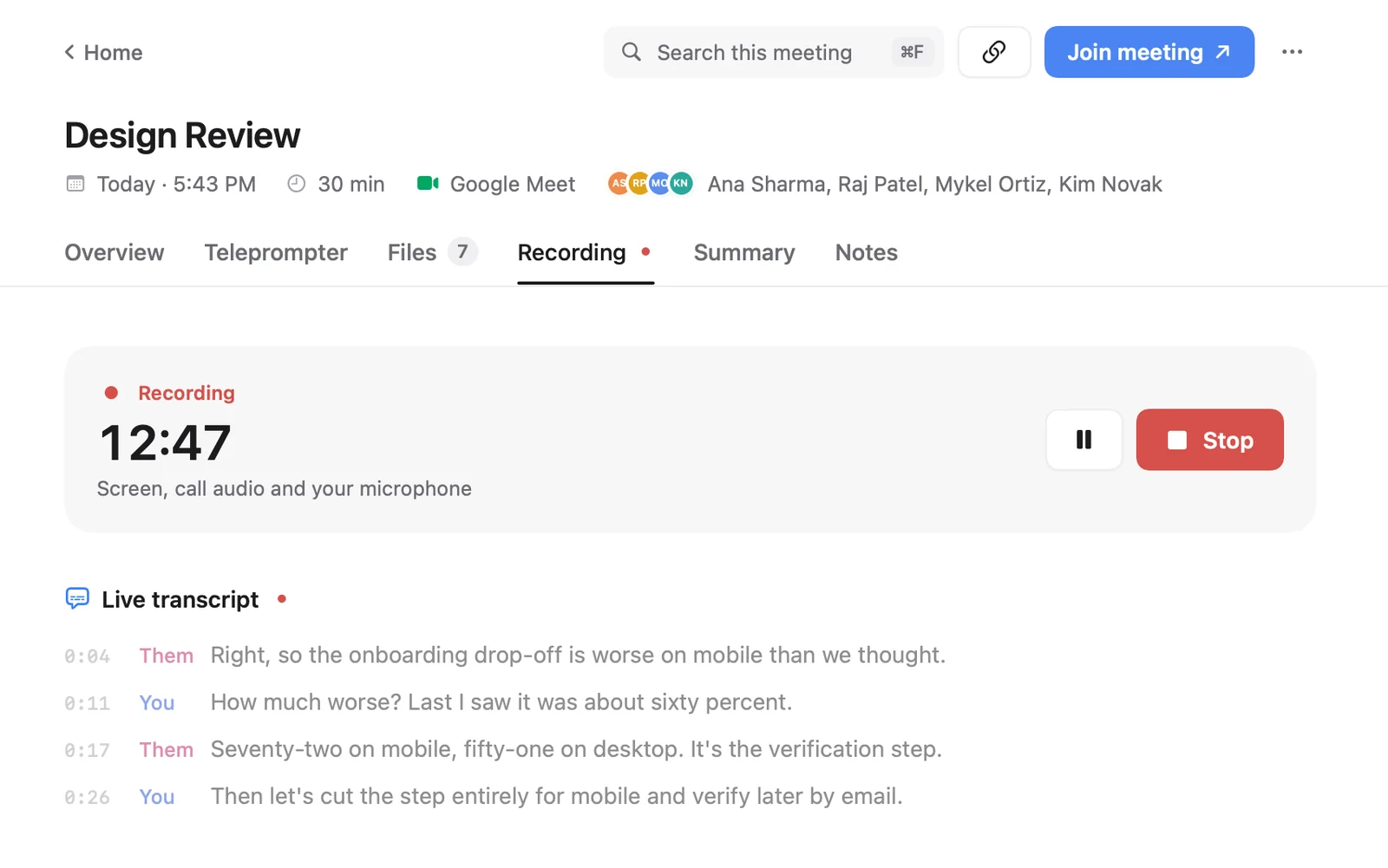
To record a meeting on a Mac you can use the call app's own Record button, the Mac's built-in screen recorder, or a meeting recorder app. Cued records automatically: when a Google Meet, Zoom, Microsoft Teams, FaceTime, Webex or Slack call starts, it captures the screen, the call's audio and your microphone, transcribes both sides as you talk, and saves everything on your Mac. You can also start recording any call yourself with ⌥R.
How does recording a call on a Mac work?
A call has three parts to capture: the picture on your screen, the other people's voices coming out of your speakers, and your own voice going into the microphone. A good recording needs all three. The other people's voices are the tricky part, because they are the Mac's system audio, and macOS only lets an app record it after you allow it.
That permission lives in System Settings → Privacy & Security → Screen & System Audio Recording. Apple's guide says you can let an app record your screen and audio, or only your audio. Any recorder, including Cued, asks for it the first time.
Built-in options vs a meeting recorder app
| Method | Who can use it | Others are told? | Where the file goes |
|---|---|---|---|
| Zoom's Record button (computer recording) | The host, or someone the host allows | Yes, a recording indicator shows | Documents → Zoom on a Mac |
| Google Meet's Record | Hosts and some others on eligible paid Google plans | Yes, everyone is notified | The organiser's Google Drive |
| Microsoft Teams' Record | Work or school Microsoft 365 licences, if the admin allows it | Yes, everyone is notified | OneDrive or SharePoint, linked in the meeting chat |
| Mac screen recorder (⇧⌘5) | Anyone | No | The desktop, unless you change it |
| Cued | Anyone, on any call | No; you tell people | Cued's folder on your Mac, with a live transcript |
The call apps' own recorders are the safest choice when you are the host and everyone expects a recording. They fall short when you are a guest, when you are on a free plan, or when you take calls in several apps. The Mac's screen recorder works anywhere but gives you a bare video file. A meeting recorder app fills the gap: it records every call the same way and turns it into something you can search.
What to look for in a meeting recorder for Mac
- Both sides of the audio. Your voice and theirs, not just your microphone.
- Works on every call app you use, not just one, and without the host's permission button.
- Starts by itself. The calls you forget to record are usually the ones you need.
- A transcript you can search, so you can find a sentence without scrubbing through an hour of video.
- Where the files go. On your Mac, in your own cloud drive, or on the app maker's servers.
- The price over time. A one-time purchase versus a monthly subscription.
How to record a call on a Mac with Cued
- Allow Screen Recording and Microphone. macOS asks once. Cued explains each permission before macOS shows its prompt.
- Join your call. Cued spots the call and starts recording. A red dot on the menu bar icon shows it is recording.
- Talk as usual. The live transcript fills in on the meeting's Recording tab.
- Hang up. The recording is saved, and the summary and recap draft are written on your Mac.
If Cued did not spot the call, for example a call in an app it does not know, press ⌥R or choose 'Record this call' in the menu bar.
Where do the recordings go?
Cued keeps every recording, transcript and summary in its own folder on your Mac. Nothing is uploaded. Deleted recordings go to the Bin first. To save space, you can delete just the video and keep the transcript and summary.
For comparison: Zoom saves computer recordings to Documents → Zoom on a Mac; Google Meet saves to the organiser's Google Drive in a Meet folder; Teams saves to OneDrive or SharePoint and posts the recording in the meeting chat.
Finding things later
Every recording is listed by day. Press ⌘K to search in plain words across every transcript, summary and file. Click any line of the transcript to jump the video there, or use the arrow keys to skip ten seconds.
Who gets notified when you record?
When the call app records, it tells people: Zoom shows a recording indicator, and Google Meet and Teams notify everyone in the meeting. When an app on your Mac records, the call is not told, and Cued sends no notice. So it is up to you to say you are recording.
Whether you also need consent depends on where you and the others are. In the US, the Reporters Committee for Freedom of the Press lists 11 states that need everyone's consent, including California, Florida and Illinois. This isn't legal advice; if in doubt, ask at the start of the call and get the answer on the recording.
Troubleshooting a Mac meeting recording
- The other side is missing from the recording: the app is probably recording only your microphone. Check that it is allowed in Screen & System Audio Recording. For the Mac's own recorder, Apple says the Include System Audio option needs macOS 27 or later, and QuickTime Player's recording only offers a microphone.
- The Record button in Zoom is missing or greyed out: Zoom says the host must record or allow you to. Ask the host, or record with an app on your Mac.
- Google Meet has no Record button: Meet recording needs an eligible Google plan and the admin's OK.
- Teams has no Record option: Teams recording needs a work or school licence, and guests and people from other organisations can't record.
- Cued did not start: press ⌥R, or use 'Record this call' in the menu bar. Check that Screen Recording and Microphone are allowed for Cued.
- Words are wrong in the transcript: quiet, overlapping or noisy audio causes mistakes. A headset or a quieter room helps more than anything else.
Questions
Where are the recordings saved?
In Cued's folder on your Mac. Deleted recordings go to the Bin.
Does Cued join the call as a participant?
No. It records through your Mac, so there is no bot and no extra guest.
Can I record a call Cued did not detect?
Yes. Press ⌥R, or choose 'Record this call' in the menu bar.
Can I record a Zoom meeting if I'm not the host?
Not with Zoom's own button unless the host allows it. An app on your Mac can record what you see and hear; tell the others, and check the consent rules where they are.
Does it work on Windows or iPhone?
No. Cued is a Mac app for Apple silicon and macOS 15 or later.
Is it a subscription?
No. Cued is a one-time purchase: $9 for the first 50 founding members, then $29 with a year of updates.
Try Cued on your next call. Your script in the notch, your call recorded and summarised on your Mac.
Download for MacSources
- Control access to screen and system audio recording on Mac, Apple Support
- Take a screen recording on your Mac, Apple Support
- Starting a computer recording, Zoom Support
- Finding your computer and cloud recordings, Zoom Support
- Record a video meeting, Google Meet Help
- Start, stop and find meeting recordings in Teams, Microsoft Support
- Introduction to the Reporters Recording Guide, RCFP