 Cued
Cued
How to record a Microsoft Teams meeting on a Mac
By Harshit Maurya, maker of Cued · Updated 16 October 2026
In Teams, choose More actions (…), then Record and transcribe, then Start recording. That works for people with a work or school Microsoft 365 licence whose admin allows recording, or, in Teams for personal use, a Microsoft 365 Personal, Family or Premium subscription. Guests and people from other organisations can't start it. Recordings of meetings are saved to the organiser's OneDrive, in a Recordings folder, or to SharePoint for channel meetings. To record a Teams call on a Mac without those limits, use an app that records through the Mac: Cued records Teams calls automatically and transcribes them on your Mac.
Who can record a Teams meeting
- Work or school accounts: both the organiser and the person pressing Record need an eligible Microsoft 365 or Office 365 business, enterprise or education licence, and recording allowed by their admin.
- People in the organiser's organisation can start and stop recording. The organiser doesn't need to be in the meeting.
- Guests, anonymous users and people from other organisations can't start or stop recording.
- Organisers can limit recording to themselves and co-organisers, to presenters, or to no one.
- Teams for personal use: Microsoft 365 Personal, Family and Premium subscribers can record; people in the meeting without a subscription can't start or stop it.
How to record in Teams
- Open the meeting controls. In the meeting, choose More actions (…), then Record and transcribe.
- Start recording. Choose Start recording. Everyone in the meeting is told it is being recorded.
- Stop recording. Choose More actions, then Record and transcribe, then Stop recording, or end the meeting.
- Find the recording. It appears in the meeting chat, or in the channel conversation for a channel meeting, once it has been uploaded.
If Record and transcribe is missing or greyed out, the reasons below explain why.
Where are Teams recordings saved?
The short answer: in OneDrive or SharePoint, never on your Mac. Where exactly depends on the kind of meeting.
| Kind of meeting | Where the recording is saved | Who can see it |
|---|---|---|
| Scheduled or Meet now meeting | The organiser's OneDrive, in the Recordings folder, even if someone else pressed Record | People invited from the same organisation; the organiser must share it with external people |
| Channel meeting | The channel's SharePoint site: Documents › Recordings | Channel members, by the channel's SharePoint permissions |
| 1:1 or group call | The OneDrive of the person who pressed Record | Others from the same organisation can view; external people need it shared |
| Teams for personal use | Microsoft's cloud, in the meeting chat, for 30 days | People in the chat; download it to keep it |
Recordings don't last forever. In work and school accounts, meeting recordings expire after 120 days by default (an admin can change this; A1 licences are capped at 30 days) and go to the OneDrive or SharePoint recycle bin, where the owner can recover them for a while. In Teams for personal use, recordings disappear from the chat after 30 days unless you download them. If you can't find one, check the meeting chat, the Recordings and Transcripts tab for that meeting in the Teams calendar, and the organiser's OneDrive Recordings folder.
Record option missing or greyed out in Teams?
Hover over the greyed-out button: Teams shows a short reason. Microsoft lists these:
- "Only people in this org can start recording": you joined as a guest, anonymously or from another organisation.
- "Unavailable for this meeting due to organization policy": your admin hasn't allowed recording, or a recent change hasn't taken effect yet.
- "Unavailable in this meeting": the organiser's policy blocks recording.
- "Only meeting organizer and co-organizer can start recording", or "Only meeting organizers and presenters…": the organiser limited who can record.
- "Unavailable because the meeting organizer has disabled recording": recording is set to no one.
- "Unavailable because Copilot is turned off for this meeting": turning Copilot off also turns off recording and transcription.
If none of these fits, ask the organiser to record, or to make you a co-organiser. Teams' own recording can't be used by an outside guest at all.
Ways to record Teams on a Mac, compared
| Teams' Record button | Mac screen recorder (⇧⌘5 / QuickTime) | Cued | |
|---|---|---|---|
| Works as a guest | No | Yes | Yes |
| Cost | A Microsoft 365 work, school or personal subscription | Free, built in | One-time, no subscription |
| Others are notified | Yes | No | No; tell them yourself |
| Records other people's voices | Yes | Only ⇧⌘5 on macOS 27 or later, with Include System Audio | Yes |
| Transcript | Yes, if transcription is allowed | No | Yes, live, on your Mac |
| Where the file goes | OneDrive or SharePoint | Desktop, by default | Cued's folder on your Mac |
| Expires | 120 days by default (work/school), 30 days (personal) | No | No; you delete it |
Recording a Teams call on a Mac with Cued
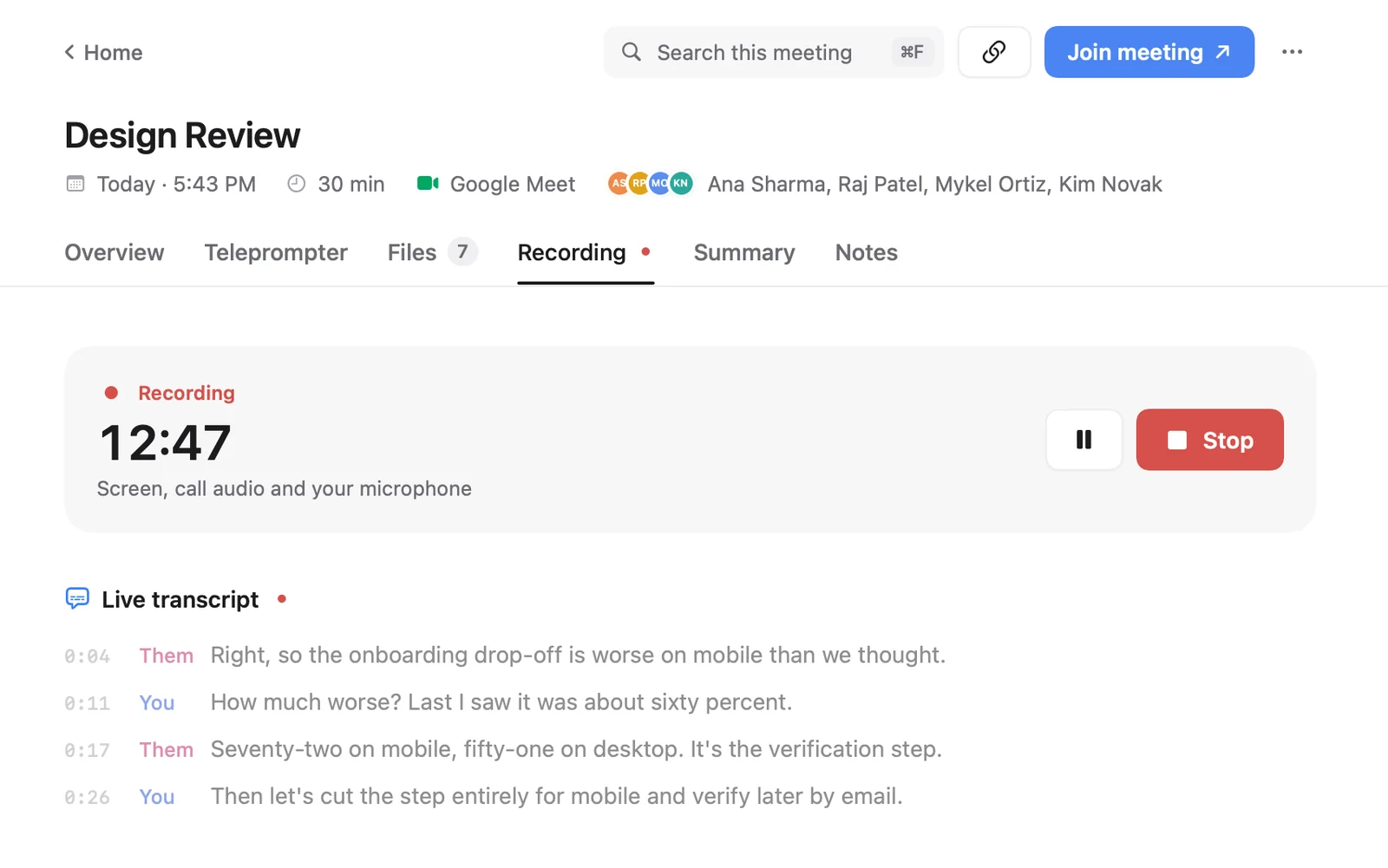
If you are a guest, use a personal account without a subscription, or just want the recording on your own Mac, Cued records the Teams call through the Mac: the screen, the call's audio and your microphone. It works with the Teams app and with Teams in the browser. It transcribes both sides live and writes a summary, action items and a follow-up email after the call. No bot joins and nothing is uploaded. It is a one-time purchase, not another subscription.
Like any recorder that captures the screen and the Mac's sound, Cued needs permission once: System Settings → Privacy & Security → Screen & System Audio Recording. If audio from the call is missing in any screen recording, this switch is the first thing to check.
Cued needs a Mac with Apple silicon and macOS 15 or later, and is designed for MacBooks with a notch.
Do other people know you are recording?
With Teams' own recording, yes: everyone is notified in the Teams desktop, web and mobile apps when recording starts. Some organisations also make people agree before they can be recorded or transcribed.
Cued records through your Mac, not through the call app, and no bot joins, so nobody in the call is notified automatically. Telling people is your job.
In the US, most states let you record a call you are part of (one-party consent), but 11 states, including California, Florida, Illinois, Maryland, Massachusetts, Pennsylvania and Washington, require everyone's consent. When people join from different states, follow the stricter rule. The simplest habit is to ask at the start, so the yes is on the recording. This isn't legal advice.
Questions
Where are Teams meeting recordings saved?
In the organiser's OneDrive, in a folder called Recordings, for normal meetings; in the channel's SharePoint site under Documents › Recordings for channel meetings; and in the recorder's OneDrive for 1:1 and group calls. The link also appears in the meeting chat.
Can a guest record a Teams meeting?
Not with Teams' own recording. A guest can record the call on their Mac with an app such as Cued, after asking everyone's consent.
Why do my Teams recordings disappear?
Work and school recordings expire after 120 days by default and go to the recycle bin; personal Teams recordings stay in the chat for 30 days. Download any you want to keep.
Does Cued work with the Teams app and Teams in the browser?
Yes, both: the Teams app and Teams in Safari, Chrome, Arc, Edge and other Chromium browsers. ⌥R records any call by hand.
Where does Cued keep the recording?
On your Mac only, in Cued's folder. There is no Cued server and recordings don't expire.
How much does Cued cost?
Cued is a one-time purchase: $9 for the first 50 founding members, then $29 with a year of updates. Download it from getcued.pro and pay inside the app after a quick setup.
Try Cued on your next call. Your script in the notch, your call recorded and summarised on your Mac.
Download for MacSources
- Start, stop, and find meeting recordings in Microsoft Teams, Microsoft Support
- I can't record a meeting in Microsoft Teams, Microsoft Support
- Manage meeting and call recordings in Teams for personal use, Microsoft Support
- Teams meeting recording storage and permissions in OneDrive and SharePoint, Microsoft Learn
- Manage Teams recording policies, Microsoft Learn
- Manage Teams recording expiration policy, Microsoft Learn
- How to record the screen on Mac, Apple Support
- Reporter's Recording Guide, Reporters Committee for Freedom of the Press