 Cued
Cued
How to record a Zoom meeting on a Mac
By Harshit Maurya, maker of Cued · Updated 16 October 2026
To record a Zoom meeting on a Mac, click Record in the Zoom app and choose Record on this Computer. Local recording works on free Zoom accounts, but only the host, or someone the host allows, can start it, and Zoom tells everyone it is recording. To record without asking the host, use a Mac app that records the call through the Mac itself. Cued does this automatically: it starts when the Zoom call starts, captures the screen and both sides of the audio, and transcribes it on your Mac.
The three ways, side by side
| Zoom's Record button (local) | Zoom cloud recording | Mac screen recorder (⇧⌘5 / QuickTime) | Cued | |
|---|---|---|---|---|
| Cost | Free (Basic) and up | Paid Zoom plan | Free, built in | One-time, no subscription |
| Needs the host's permission | Yes, unless you are the host | Yes, unless you are the host | No | No |
| Others are notified | Yes, Zoom shows a recording notice | Yes | No | No; tell them yourself |
| Records other people's voices | Yes | Yes | Only ⇧⌘5 on macOS 27 or later, with Include System Audio | Yes |
| Starts by itself | No, you press Record | No, you press Record | No | Yes, when the call starts |
| Transcript | No | Yes, on Pro and up, English only | No | Yes, live, on your Mac |
| Where the file goes | Documents › Zoom on your Mac | Zoom's cloud | Desktop, by default | Cued's folder on your Mac |
Option 1: Zoom's own Record button
Zoom's local recording, which Zoom calls Record to computer files, is included from the free Basic plan up. It works in the Zoom desktop app on Mac, Windows and Linux, not on iPhone, iPad or Android, where Zoom only offers cloud recording on paid plans.
- Turn local recording on. Sign in at zoom.us, open Settings, then the Recording tab, and switch on Record to computer files. If the switch is greyed out, your organisation's admin has locked it.
- Choose the folder. In the Zoom app, open Settings, then Recording, and check where local recordings go. By default it is a Zoom folder in Documents.
- Start recording in the meeting. Click Record, then Record on this Computer. If you are not the host, ask the host to give you permission to record.
- Stop and wait. Click Stop Recording, or end the meeting. Zoom finishes the file after the meeting ends.
Cloud recording needs a paid Zoom plan. Zoom's audio transcript, a text file of what was said, only exists for cloud recordings: Zoom says it applies only to cloud recordings, needs a Pro, Business, Education or Enterprise account, and supports English only. A local recording gives you a video file and no transcript.
Option 2: The Mac's own screen recorder
Press ⇧⌘5 for the Screenshot toolbar, or open QuickTime Player and choose File, then New Screen Recording. Both record the picture and, if you choose one under Options, your microphone. Only from macOS 27 does the Screenshot toolbar add an Include System Audio option; on earlier versions, and in QuickTime, the sound coming out of the Mac is not recorded, so the other people's voices are missing. The Screenshot toolbar saves to the desktop by default.
Option 3: Record every Zoom call automatically with Cued
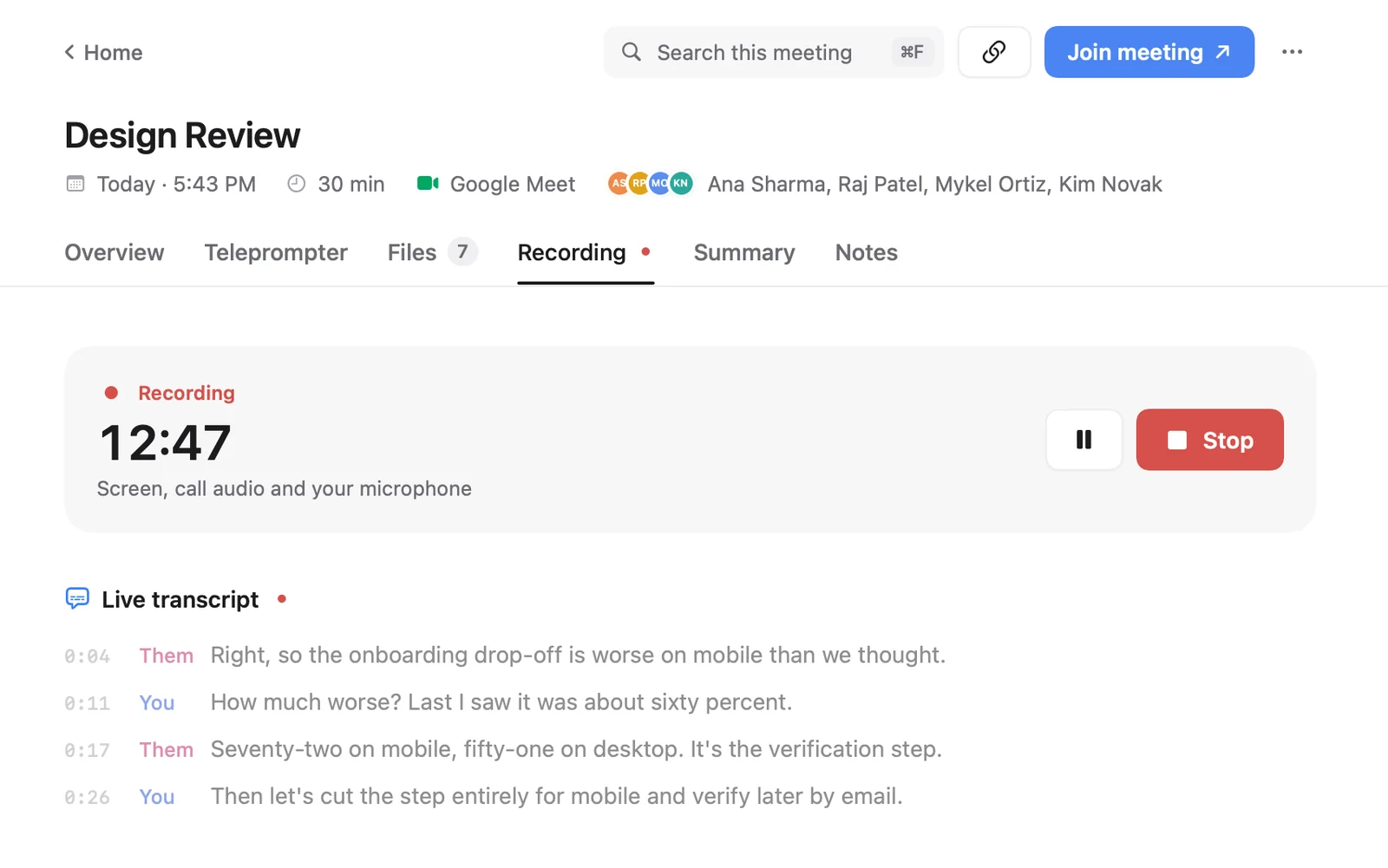
- Cued notices when a Zoom call starts and begins recording: the screen, the call's audio and your microphone.
- Both sides are transcribed live, on your Mac. Nothing is uploaded and no bot joins the call.
- When you hang up, Cued writes a summary, the action items and a draft follow-up email that you review and send yourself.
- Missed the start? Press ⌥R to record any call by hand.
- It is a one-time purchase, with no subscription.
Cued needs a Mac with Apple silicon and macOS 15 or later, and is designed for MacBooks with a notch.
Record button missing or greyed out?
- You are not the host. Participants can only record locally if the host allows it. Ask the host, or ask them to record and share the file.
- Local recording is switched off. Check zoom.us → Settings → Recording → Record to computer files. If it is greyed out, it has been locked at your account or group level, and only your admin can change it.
- You are on a phone or tablet. Zoom's mobile apps cannot record locally; they only offer cloud recording on paid plans.
- You want a transcript and only see local recording. Zoom's transcript needs cloud recording on a paid plan, with audio transcription switched on before the meeting.
Recording has no sound from the other people?
This is the most common Mac problem. QuickTime and the Screenshot toolbar before macOS 27 record your microphone, not the Mac's own sound, so you hear yourself and silence from everyone else. Fixes, from simplest: use Zoom's own Record button if you can; on macOS 27 or later choose Include System Audio in the Screenshot toolbar's Options; or use an app that records system audio, such as Cued, which captures the call's sound and your microphone.
Any app that records the screen or the Mac's sound needs permission. Open System Settings → Privacy & Security → Screen & System Audio Recording and turn the app on.
Where are Zoom recordings saved on a Mac?
Local recordings go to the Documents folder, in a folder called Zoom, with one folder per meeting named by date and time. You can change the location in the Zoom app under Settings → Recording. Cloud recordings stay in Zoom's cloud; find them at zoom.us under Recordings & Transcripts. Cued keeps its recordings, transcripts and summaries in Cued's own folder on your Mac.
Do other people know you are recording?
With Zoom's own recording, yes. Zoom says it will always notify participants that a meeting is being recorded: people in the Zoom app see a consent notice and people who dialled in hear an audio prompt. On free and smaller accounts this notice cannot be switched off.
Cued records through your Mac, not through the call app, and no bot joins, so nobody in the call is notified automatically. Telling people is your job.
In the US, most states let you record a call you are part of (one-party consent), but 11 states, including California, Florida, Illinois, Maryland, Massachusetts, Pennsylvania and Washington, require everyone's consent. When people join from different states, follow the stricter rule. The simplest habit is to ask at the start, so the yes is on the recording. This isn't legal advice.
Questions
Can I record a Zoom meeting without the host's permission?
Zoom's own button needs the host's permission unless you are the host. An app that records through your Mac, like Cued, does not go through Zoom. You should still tell everyone and ask for their consent.
Where does Zoom save local recordings on a Mac?
In Documents › Zoom by default, one folder per meeting. Check or change it in the Zoom app under Settings → Recording.
Why does my Mac screen recording have no sound from the call?
QuickTime, and the Screenshot toolbar before macOS 27, record the microphone, not the Mac's own sound. On macOS 27 choose Include System Audio, or use a recorder that captures system audio, such as Cued.
Does Zoom give a transcript of a local recording?
No. Zoom's audio transcript is only for cloud recordings on Pro plans and up, in English. Cued transcribes the whole call live on your Mac.
Can I record a Zoom meeting on my iPhone?
Only with Zoom's cloud recording on a paid plan; local recording is desktop-only. Cued is a Mac app and does not run on iPhone.
How much does Cued cost?
Cued is a one-time purchase: $9 for the first 50 founding members, then $29 with a year of updates. Download it from getcued.pro and pay inside the app after a quick setup.
Try Cued on your next call. Your script in the notch, your call recorded and summarised on your Mac.
Download for MacSources
- Enabling and starting local recordings, Zoom Support
- Enabling or disabling audio transcription for cloud recordings, Zoom Support
- Modifying recording notification prompts, Zoom Support
- Where do Zoom recordings go?, Zapier
- How to record the screen on Mac, Apple Support
- Control access to screen and system audio recording on Mac, Apple Support
- Reporter's Recording Guide, Reporters Committee for Freedom of the Press