 Cued
Cued
How to get a transcript of a Zoom local recording on Mac
By Harshit Maurya, maker of Cued · Updated 16 October 2026
Zoom's audio transcript works only for cloud recordings, on Pro, Business, Education or Enterprise accounts, so a recording saved to your computer comes without one, and Zoom doesn't let you upload it to its cloud afterwards. To get a transcript, transcribe the file on your Mac with an on-device app such as MacWhisper, or save Zoom's live captions during the meeting if the host allows it. For future calls, Cued transcribes the call live on your Mac while it records.
Why doesn't my Zoom local recording have a transcript?
Because Zoom's transcript is a feature of cloud recording. Zoom's support article on the setting, called Create audio transcript, lists the prerequisites: a Pro, Business, Education or Enterprise account with cloud recording turned on. It says the transcript is made only for cloud recordings, not for recordings saved to your device, and that audio transcription only supports English.
Two more catches come from the University of Michigan's Zoom guide. The setting has to be on before you record: it cannot be applied to recordings that already exist. And the transcript can take several hours to appear for a long recording. When it does, it is a VTT file next to the cloud recording.
- Personal setting: profile picture > Settings > Recording > Advanced cloud recording settings > Create audio transcript.
- Account admins: Admin Center > Settings > Recording & Transcript > Advanced cloud recording settings.
- If an admin has locked the setting, you can't change it yourself.
Can I upload a local recording to Zoom's cloud to transcribe it?
No. A Zoom employee answering on the Zoom Community in July 2025 said plainly that you can't upload computer recordings to the Zoom cloud, and suggested sharing them through a third-party cloud storage service instead. A Community member suggested a workaround: start a meeting with cloud recording and transcripts turned on, and play the local file back in it. That is not an official method, and it takes as long as the recording itself.
Your options, compared
| Option | Works on a recording you already have? | Where the audio is processed | What you need | The catch |
|---|---|---|---|---|
| Zoom cloud recording with Create audio transcript | No, only new cloud recordings | Zoom's cloud | Pro, Business, Education or Enterprise | English only; turn it on before you record; can take hours |
| Save captions or the transcript during the meeting | No, only while the meeting runs | Zoom's live captions | Host turns on Save Captions | You must save before you leave the meeting |
| On-device transcription app, such as MacWhisper | Yes: drag the file in | On your Mac, with local models | Free to try, then a paid licence | You check names and numbers yourself |
| A cloud transcription service | Yes: upload the file | The service's servers | An account with that service | The client's words leave your Mac |
| Cued | No: it transcribes calls it records, not existing files | On your Mac | A one-time payment, no subscription | macOS 15 or later on Apple silicon; English |
How to transcribe a Zoom local recording on your Mac
- Find the recording. Open the folder where Zoom saved the recording on your Mac.
- Open an on-device transcription app. MacWhisper, for example, says you can transcribe any file by dragging and dropping it, using local models so the file doesn't leave your Mac.
- Transcribe. Drop the file in and wait. A long recording takes a while, depending on the model and your Mac.
- Check it against the recording. Read the parts that matter: names, numbers, dates and anything you promised. Machine transcripts make mistakes on quiet, fast or overlapping speech.
- Export and store it. Export the transcript as a document or subtitles, and keep it with the client's files. Delete the recording when you no longer need it.
How to save Zoom's live captions as a transcript
If you can't use cloud recording, Zoom's live captions are the other built-in route, and they work only during the meeting. University IT guides describe the settings: the host turns on Automated Captions and Save Captions under Settings > Meeting > In Meeting (Advanced). During the meeting, open the Transcript panel (under More on some versions) and click Save Transcript. Minnesota State University, Mankato's guide warns that you must save before you leave the meeting. Stanford's guide also lists a Save closed caption as a VTT file option under Record to computer files, which saves the captions next to a local recording if captions were running.
How to get transcripts of future Zoom calls without the cloud
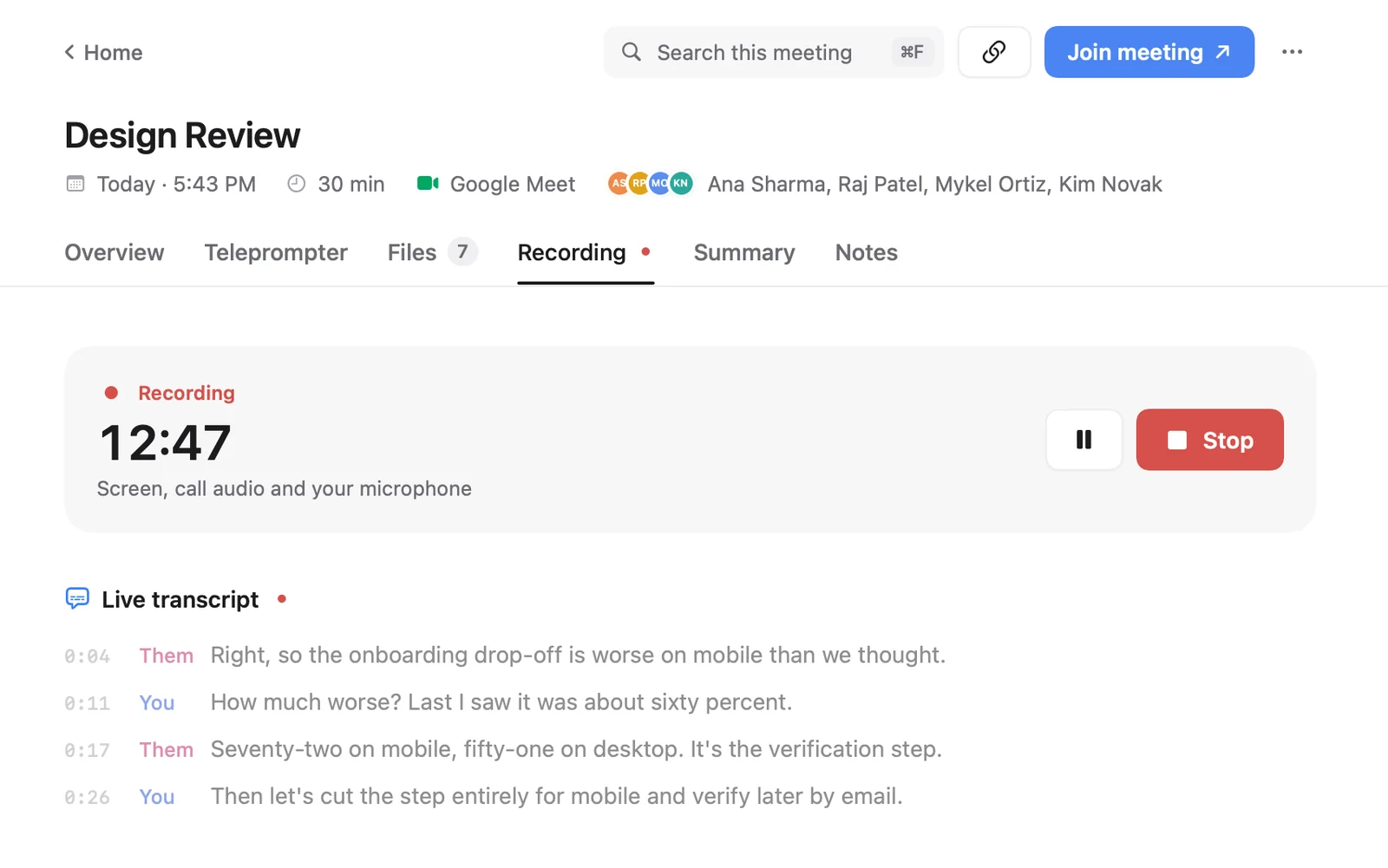
If you record Zoom calls for clients and want the transcript every time, use a recorder that transcribes as it records. Cued starts recording when a Zoom call starts, or when you press ⌥R. It records the screen and both sides of the audio through your Mac, with no bot, and writes a live transcript on the Mac while you talk. After the call it writes a summary with key points and action items, and drafts a follow-up email for you to review and send. Press ⌘K to search every call's transcript in plain words. Nothing is uploaded, and the recordings stay in Cued's folder on your Mac.
Cued does not import recordings you already have; for those, use an on-device app like MacWhisper. Transcripts are in English and are good, not perfect. Cued is a one-time payment, no subscription: $9 for the first 50 founding members, then $29 with a year of updates. Cued needs a Mac with Apple silicon and macOS 15 or later, and is designed for MacBooks with a notch. Whatever tool you use, tell people you are recording and ask for their consent. Because Cued adds no bot, nobody is notified automatically: telling them is your job.
Questions
Can Zoom transcribe a local recording?
No. Zoom's Create audio transcript setting works only for cloud recordings, and only if it was on before you recorded.
How do I have Zoom transcribe an existing, locally stored recording?
You can't upload it to Zoom's cloud. Transcribe the file on your Mac with an on-device app such as MacWhisper, or with a cloud transcription service if your clients allow it.
Where do I find my saved Zoom transcripts?
For cloud recordings with Create audio transcript turned on, the transcript is a VTT file stored with the cloud recording. Zoom emails you when it's ready, and it can take several hours for long recordings.
Does the free Zoom plan include transcripts?
Zoom's support article lists Pro, Business, Education and Enterprise accounts with cloud recording as the prerequisite. The free plan is not on that list.
Can Cued transcribe a Zoom recording I already have?
No. Cued transcribes calls it records itself, live on your Mac. For an existing file, use an on-device app like MacWhisper.
How much does Cued cost?
Cued is a one-time payment, no subscription: $9 for the first 50 founding members, then $29 with a year of updates.
Try Cued on your next call. Your script in the notch, your call recorded and summarised on your Mac.
Download for MacSources
- Enabling or disabling audio transcription for cloud recordings, Zoom Support
- Upload computer recording to the Zoom cloud, Zoom Community (Zoom employee reply, Jul 2025)
- Transfer a recording from local to cloud to be able to transcribe it, Zoom Community, May 2025
- Zoom: audio transcription and captioning for cloud recordings, University of Michigan ITS
- Zoom captioning and transcription settings, Stanford University IT
- Enabling live transcription and saving transcripts in Zoom meetings, Minnesota State University, Mankato
- MacWhisper