 Cued
Cued
How to record a call's system audio on a Mac without BlackHole
By Harshit Maurya, maker of Cued · Updated 16 October 2026
On macOS 27 Golden Gate or later, press ⇧⌘5, click Options, choose your microphone and tick Include System Audio: that records both sides of a call with nothing extra to install. On older versions of macOS the built-in recorders only take a microphone, and Audio MIDI Setup cannot record sound on its own, so use an app that captures audio through Apple's ScreenCaptureKit, such as OBS Studio, Audio Hijack or a meeting recorder like Cued.
Why your Mac screen recording has no sound from the call
A call has two kinds of sound. Your voice goes into the microphone. Everyone else's voice comes out of the Mac as system audio. For years the Mac's own recorders, the Screenshot toolbar (⇧⌘5) and QuickTime Player, only offered a microphone, so a screen recording of a Zoom or Meet call caught you and missed the other people. That is why so many people ask on Apple Community how to record internal audio, and why guides send them to BlackHole, a free virtual audio driver.
That changed with macOS 27. Apple's guide to recording the screen, published on 14 September 2026, says that to record system audio in macOS 27 Golden Gate or later you choose Include System Audio in the Screenshot toolbar's Options. Apple released macOS 27 on 14 September 2026 for Macs with an M1 chip or newer, so Intel Macs do not get it. The same guide describes only a microphone choice for QuickTime Player's own recording window.
Which way works on your Mac?
| Way to record | macOS | Other people's voices | Your voice | Install anything? |
|---|---|---|---|---|
| Screenshot toolbar (⇧⌘5) with Include System Audio | macOS 27 or later | Yes | Yes, pick a microphone | No |
| Screenshot toolbar or QuickTime Player | macOS 26 and earlier | No: only a microphone is offered | Yes | No |
| Audio MIDI Setup multi-output device | Any | Not by itself: it plays sound through several outputs, it doesn't record | No | Needs a virtual driver such as BlackHole |
| OBS Studio 30 or later (macOS Audio Capture source) | macOS 13 or later | Yes, all desktop audio or one app | Yes, add a microphone source | OBS Studio |
| Audio Hijack 4.6 | macOS 14.4 to macOS 27 | Yes: set the call app as the source | Yes | Audio Hijack (paid, with a limited trial) |
| Cued | macOS 15 or later, Apple silicon | Yes, starts when the call starts | Yes | Cued: a one-time payment, no subscription |
How to record system audio with the built-in recorder (macOS 27)
- Check your macOS version. Choose Apple menu > About This Mac. Include System Audio needs macOS 27 Golden Gate or later.
- Open the Screenshot toolbar. Press Shift-Command-5, then choose Record Entire Screen, Record Selected Window or Record Selected Portion.
- Choose both kinds of sound. Click Options. Choose your microphone so your own voice is included, and choose Include System Audio so the other people's voices are included.
- Record the call. Click Record. To stop, click the Stop button in the menu bar or press Command-Control-Esc.
- Find the file. The recording is saved to the Desktop unless you picked another place under Save to in Options.
This gives you a video file and nothing else: no transcript, no summary, and you have to remember to start and stop it.
Can Audio MIDI Setup record system audio on its own?
No. Audio MIDI Setup is the Mac's utility for audio devices. Its multi-output device sends sound to several devices at once: in Apple's words, audio sent to the primary device "also plays through any other device" in the stack. It does not create a new input that a recorder can listen to. That is why guides pair it with BlackHole, a virtual loopback driver: BlackHole becomes one of the outputs, and your recording app uses BlackHole as its input.
If you still want that route, here are the honest steps from Apple's guide and BlackHole's README, with the catches:
- Install BlackHole. It is open source under the GPL-3.0 licence, and it is the extra install this page is trying to avoid.
- Open Audio MIDI Setup (Applications > Utilities). Click the add button at the bottom of the sidebar and choose Create Multi-Output Device.
- Tick Use for your speakers or headphones and for BlackHole. BlackHole's FAQ says the built-in output must be enabled and listed first.
- Set the multi-output device as the Mac's sound output, then set your recorder's input to BlackHole.
- Catch one: BlackHole's FAQ says macOS does not support changing the volume of a multi-output device, so the volume keys stop working until you switch back.
- Catch two: this captures the other side only. Your own voice needs a second input, and you have to switch the output back after every call.
What apps that use ScreenCaptureKit can capture
ScreenCaptureKit is Apple's framework for apps that stream screen content and audio. It arrived in macOS 12.3; its option to capture audio arrived in macOS 13, and its option to add the microphone to the same stream in macOS 15. Apple also documents Core Audio taps, which let an app capture the outgoing audio of one app or a group of apps. Apps built on these ask for permission under System Settings > Privacy & Security > Screen & System Audio Recording, and you do not have to install a driver or change your sound output.
- OBS Studio: its knowledge base says that on macOS 13 or later, OBS Studio 30 and later can capture all desktop audio or a single app with the macOS Audio Capture source, without extra software.
- Audio Hijack: Rogue Amoeba says you can set any app as the source and record calls from Zoom, FaceTime and other calling apps. Version 4.6.0 runs on macOS 14.4 to macOS 27.
- MacWhisper: its site says it can capture and transcribe audio from any app on your Mac and record online meetings, with local transcription models.
- Cued: a meeting recorder built on ScreenCaptureKit, described below.
How Cued records both sides of a call
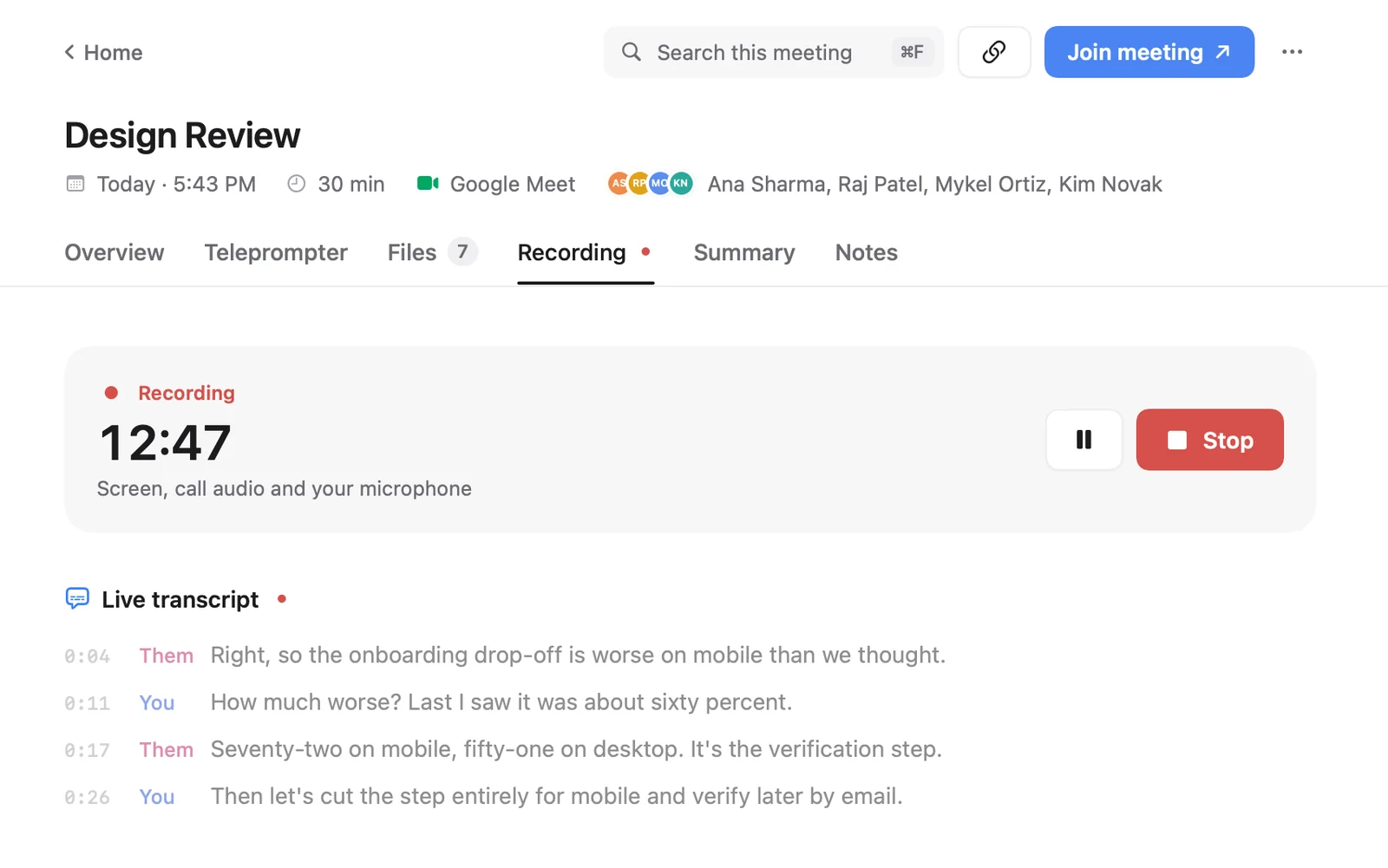
Cued records Google Meet, Zoom, Microsoft Teams, FaceTime, Webex and Slack calls when they start, or any call when you press ⌥R. It records the screen, the other people's voices and your microphone through the Mac itself, so no bot joins the call and there is no driver or multi-output device to set up. It asks once for the Screen Recording permission, which is what lets it hear the other side. While you talk it writes a live transcript on the Mac, and afterwards a summary with key points and action items and a draft follow-up email that you review and send yourself. Recording, transcription and summaries run on the Mac and nothing is uploaded.
Transcripts are good, not perfect: quiet, overlapping or noisy audio causes mistakes. Cued is a one-time payment, no subscription: $9 for the first 50 founding members, then $29 with a year of updates. Cued needs a Mac with Apple silicon and macOS 15 or later, and is designed for MacBooks with a notch. Whatever tool you use, tell people you are recording and ask for their consent. Because Cued adds no bot, nobody is notified automatically: telling them is your job.
Questions
How do I record internal audio on my Mac?
On macOS 27 or later, press ⇧⌘5, click Options and choose Include System Audio. On older versions, use an app that captures audio through ScreenCaptureKit, such as OBS Studio 30 or later, Audio Hijack or Cued, or install a virtual driver such as BlackHole.
How do I screen record on a MacBook Air M4 with audio?
Macs with M1 or newer can run macOS 27. Press ⇧⌘5, click Options, pick your microphone for your own voice and Include System Audio for the sound coming out of the Mac, then click Record.
Why does my screen recording of a Zoom call have no audio?
Before macOS 27, the Mac's built-in recorders captured only a microphone, not the sound coming out of the Mac, so the other people's voices were missing. Turn on Include System Audio on macOS 27, or use a recorder that captures system audio.
Can QuickTime Player record system audio?
Apple's guide only describes choosing a microphone in QuickTime Player's recording window. The Include System Audio option it describes is in the Screenshot toolbar, on macOS 27 or later.
Do I still need BlackHole?
Not to record a call on macOS 27, and not with apps that use ScreenCaptureKit on recent macOS. BlackHole is still useful for routing audio between apps, which is what it was built for.
How much does Cued cost?
Cued is a one-time payment, no subscription: $9 for the first 50 founding members, then $29 with a year of updates.
Try Cued on your next call. Your script in the notch, your call recorded and summarised on your Mac.
Download for MacSources
- How to record the screen on Mac, Apple Support (published 14 Sep 2026)
- Apple announces macOS Golden Gate release date, MacRumors, 10 Sep 2026
- Play audio through multiple devices at once, Audio MIDI Setup User Guide, Apple
- BlackHole README and FAQ, Existential Audio on GitHub
- ScreenCaptureKit, Apple Developer Documentation
- SCStreamConfiguration capturesAudio (macOS 13), Apple Developer Documentation
- SCStreamConfiguration captureMicrophone (macOS 15), Apple Developer Documentation
- Capturing system audio with Core Audio taps, Apple Developer Documentation
- Control access to screen and system audio recording on Mac, Apple Support
- macOS Desktop Audio Capture Guide, OBS Knowledge Base
- Audio Hijack, Rogue Amoeba
- MacWhisper
- How do I record internal audio, Apple Community