 Cued
Cued
How to record a FaceTime call on Mac, with both sides' audio
By Harshit Maurya, maker of Cued · Updated 16 October 2026
FaceTime has no record button, so on a Mac you record the screen: press Shift-Command-5 (or use QuickTime Player), choose a microphone in Options, and click Record. Apple's built-in recorder captures sound only from a microphone, so the other person's voice is often faint or missing, and missing entirely if you wear headphones. To get both sides, use an app that records system audio, which macOS lets you allow under Privacy & Security. Ask the other person first.
Can you record a FaceTime call on a Mac?
Yes, but not from inside FaceTime. FaceTime can take a Live Photo during a video call, and Apple says that when you do, you both get a notification. A Live Photo is a short moment, not a recording. For a recording you use macOS screen recording or a separate app, and neither of those tells the other person anything.
Record a FaceTime call with the Screenshot toolbar
- Start the call, then press Shift-Command-5. The Screenshot toolbar opens at the bottom of the screen.
- Choose what to record. Pick Record Entire Screen, or record a selected portion and drag the frame around the FaceTime window.
- Pick a microphone. Click Options and choose a microphone so it has a tick. If you leave it on None, the recording has no sound at all. Under Save to, choose where the file goes.
- Record. Click Record. To stop, click the Stop Recording button in the menu bar.
- Find the file. The recording is a .mov file whose name starts with "Screen Recording" and the date and time.
QuickTime Player does the same job: choose File → New Screen Recording and it opens the same Screenshot recording tools.
Why the other person's audio is missing
Apple's guide to screen recording describes one kind of sound: a microphone you choose in Options. It doesn't mention recording the audio coming out of your Mac. So the recorder hears what your microphone hears. Your own voice comes through clearly. The other person's voice only gets in if it plays out of your speakers loudly enough for the microphone to pick it up again, and if you wear headphones, it never reaches the microphone at all.
That is exactly what people describe on Apple's community forum: a recording with only their own side, or only the picture. The long-standing workaround was to add a virtual audio device and combine it with the microphone in Audio MIDI Setup, which works but takes setup and testing before an important call.
Your options compared
| Method | Video | Your voice | Their voice | Setup |
|---|---|---|---|---|
| Screenshot toolbar or QuickTime | Yes | Yes, if you pick a microphone | Only what the microphone picks up from your speakers | None |
| Screen recording plus a virtual audio device | Yes | Yes | Yes | Extra software and an aggregate device in Audio MIDI Setup; test first |
| An app that records system audio (for example Cued) | Yes | Yes | Yes | Allow it under Screen & System Audio Recording |
The permission that lets an app hear both sides
macOS keeps screen and system-audio recording behind a permission. Apple's guide says to open System Settings → Privacy & Security → Screen & System Audio Recording, where each app can be switched on or off, and where you can let an app record your screen and audio or just your audio. A recorder that captures the other side of a call needs this, plus microphone access for your side. If a recording has silence where the other person should be, check this list first.
Ask before you record
FaceTime's Live Photo notification is the only built-in notice, and a screen recording sends none. In about 11 US states, including California, Florida and Illinois, everyone on a call must agree to be recorded, and when people are in different states the stricter rule is the safe assumption. In the UK, the Information Commissioner's Office says people must be told when you collect their personal data and why. Say it at the start: "Do you mind if I record this so I don't have to take notes?" and stop if they do. This isn't legal advice.
Recording FaceTime calls with Cued
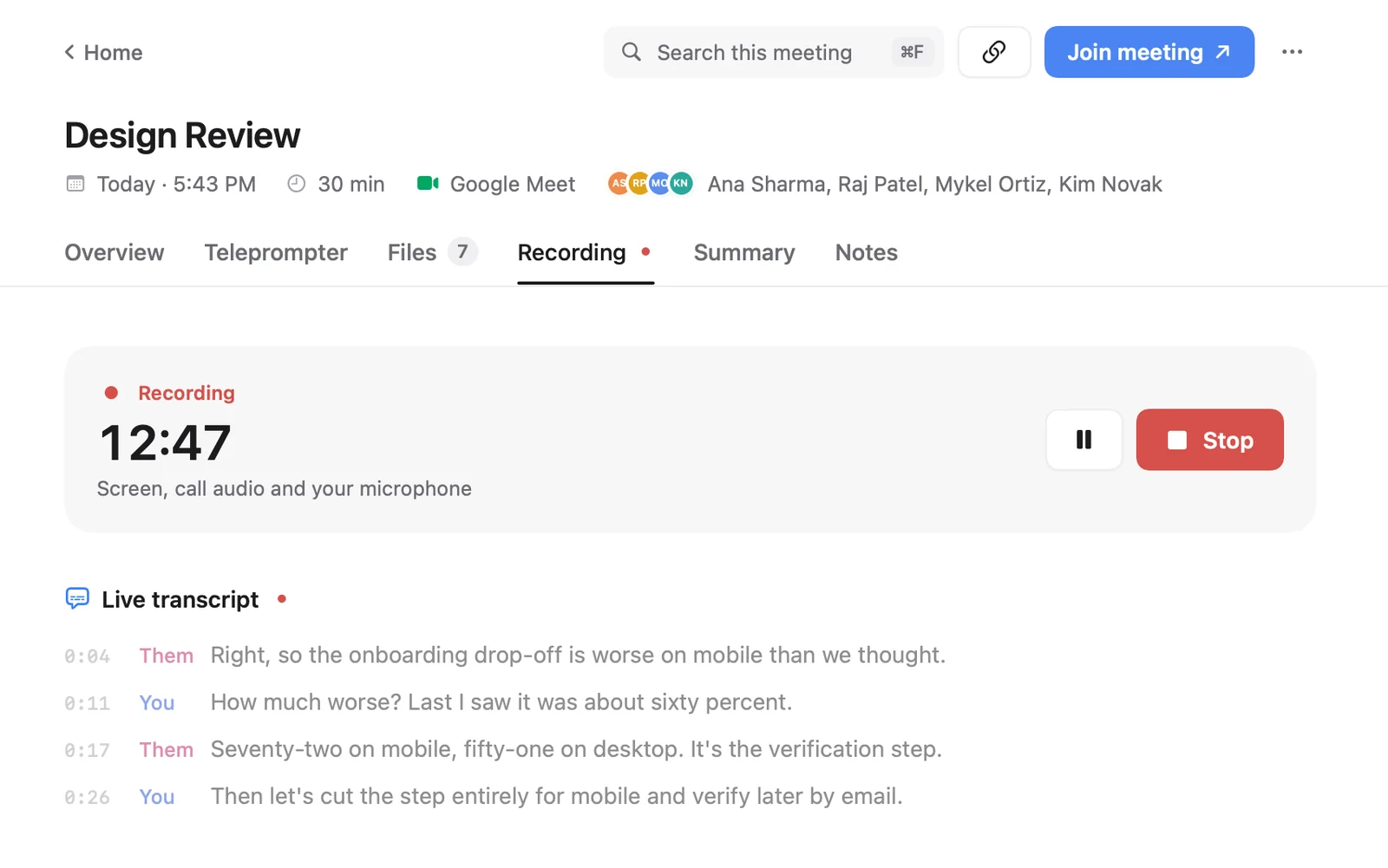
Cued is a Mac app that records calls in FaceTime, Zoom, Google Meet, Microsoft Teams, Webex and Slack when they start, or any call by hand with ⌥R. It records the screen and both sides of the audio through the Mac itself, so the other person's voice is captured even if you wear headphones. You allow it once in Screen & System Audio Recording.
- A live transcript of both sides while you talk, on the Mac.
- After the call, a summary with key points and action items, and a drafted follow-up you review and send yourself.
- ⌘K search across every transcript and summary.
- Everything runs on the Mac with on-device models and works offline; recordings stay in Cued's folder and nothing is uploaded.
- Transcripts are good, not perfect: quiet, overlapping or noisy audio causes mistakes.
Like any recorder, Cued doesn't notify the other person, so ask first. It is a one-time payment, not a subscription.
Cued needs a Mac with Apple silicon and macOS 15 or later, and is designed for MacBooks with a notch. Cued is a one-time payment, not a subscription: $9 for the first 50 founding members, then $29 with a year of updates.
Questions
How do I record a FaceTime call on a Mac with audio?
Press Shift-Command-5, choose a microphone under Options, and click Record. That captures your voice; to capture the other person reliably, use an app allowed under Screen & System Audio Recording, such as Cued.
Why does my FaceTime recording only have my voice?
The Screenshot toolbar records from a microphone, not from your Mac's sound output. With headphones, the other person's voice never reaches the microphone.
Does FaceTime notify the other person if I screen record?
Apple documents a notification only for Live Photos taken during a FaceTime call. A screen recording sends no notice, so tell the other person yourself.
Where are screen recordings saved on a Mac?
Where you chose under Options → Save to in the Screenshot toolbar. The file is a .mov whose name starts with "Screen Recording".
Does Cued record FaceTime calls automatically?
Yes. Cued notices when a FaceTime call starts and records the screen and both sides of the audio on your Mac. ⌥R starts or stops a recording by hand.
How much does Cued cost?
Cued is a one-time payment, not a subscription: $9 for the first 50 founding members, then $29 with a year of updates.
Try Cued on your next call. Your script in the notch, your call recorded and summarised on your Mac.
Download for MacSources
- Take screenshots or screen recordings on Mac, Apple Support
- Record your screen in QuickTime Player on Mac, Apple Support
- Control access to screen and system audio recording on Mac, Apple Support
- Take a Live Photo in FaceTime on Mac, Apple Support
- How to record FaceTime calls on a Mac? Apple Community, 2012–2017
- Can't record FaceTime video AND audio, Apple Community, 2023
- Introduction to the Reporters Recording Guide, Reporters Committee for Freedom of the Press
- Right to be informed, UK Information Commissioner's Office