 Cued
Cued
How to stop AI notetaker bots joining your Zoom, Meet or Teams calls
By Harshit Maurya, maker of Cued · Updated 16 October 2026
To stop AI notetaker bots joining your meetings, make people wait to be let in (Zoom's waiting room, a Restricted Google Meet, the Teams lobby), don't admit the bot, and remove it from the participant list if it gets in. If the bot is yours, turn off auto-join in the notetaker's settings; Otter, Read AI and Fireflies all have one. If you still want notes, use an AI note taker that records on your own computer instead of sending a bot.
Why notetaker bots keep showing up
Most AI notetakers connect to someone's calendar and join every meeting on it as a participant. Bridgewater State University's IT team notes that Read AI and Otter are set to join meetings by default. So a bot can arrive because one guest connected their calendar months ago, not because anyone chose to bring it today. Microsoft's own documentation lists the risks: bots may record or transcribe without people knowing and store meeting data in third-party systems.
The fixes at a glance
| Platform | Keep bots waiting | Remove one that got in | Admin option |
|---|---|---|---|
| Zoom | Turn on the waiting room and admit people one by one | Participants → More → Remove (it can't rejoin unless you allow it) | Require sign-in to join (authentication) |
| Google Meet | Set Meeting access to Restricted; untick "Anyone with the meeting link can ask to join" | Participants → ⋮ → Remove from the call | Host management, so only hosts admit people |
| Microsoft Teams | Options → Meeting access → Who can bypass the lobby? | Participants → … → Remove from meeting | Bot detection: detected bots wait in the lobby (on by default) |
Zoom: how do I disable AI notetakers from joining our meetings?
- Turn on the waiting room. Schedule the meeting with the waiting room on, or during the call click Host tools and turn on Enable waiting room. Everyone now waits until you admit them.
- Admit people, not bots. Open Participants and click Admit next to each person. Leave the notetaker in the waiting room.
- Remove a bot that got in. In Participants, click More next to the bot and choose Remove. Zoom says removed participants can't rejoin unless you allow it. You can also choose Put in waiting room.
- Lock the meeting. Once everyone is in, use Zoom's lock option, which stops anyone new from joining.
If your organisation runs Zoom, an admin can also require people to sign in to join. Bridgewater State's IT guide recommends this so notetakers like Otter can't join uninvited. Zoom's help pages we read don't describe a single switch that blocks every notetaker, so the waiting room is the main defence.
Google Meet: keep the call restricted
In the Calendar event, click Video call options, or during the call click Host controls. Set the meeting access type to Restricted: only people invited through the calendar, or added by a host, join without knocking. Untick "Anyone with the meeting link can ask to join" and uninvited guests are declined without knocking at all. With Host management on, only hosts and co-hosts can accept knocks and remove people.
A bot that is on the calendar invite counts as invited. Before the meeting, open the event and remove the bot's address from the guests (Fireflies' help, for example, says to remove fred@fireflies.ai). During the call, open the participant list, click the three dots next to the bot and choose Remove from the call.
Microsoft Teams: the lobby and bot detection
Teams now detects many external bots as they join. Microsoft's documentation says detected bots are placed in the lobby whatever the meeting's lobby setting, marked as bots, and must be admitted explicitly by the organiser (or presenters, depending on settings). This is the default policy, "When detected, require approval before joining". Microsoft is also clear that some bots may not be detected, and that people are occasionally flagged by mistake.
So keep the lobby on as well. In the calendar event, open Options → Meeting access and set Who can bypass the lobby? to a narrower group; Microsoft suggests letting only organisers and co-organisers admit people, which you set under Who can admit from the lobby. During the call, open People and click the X next to a bot waiting in the lobby to deny it. If one is already in, click the … next to it and choose Remove from meeting.
Turn the bot off at the source: Otter, Read AI, Fireflies
If the bot is yours, or a colleague's, the fix is in the notetaker's own settings. The steps below come from the vendors' help pages and a university IT guide that links to them; menu names change, so look for "auto-join".
- Otter: in Integrations, open the Meetings tab and set Default auto-join settings to "Meetings I manually select". Otter's help centre has an article on stopping Otter Notetaker from joining your meetings automatically.
- Read AI: in Account Settings, open Meeting Recording → Auto-Join Preferences and turn off Auto-join meetings. During a call, typing "opt out" in the chat makes Read leave and delete what it collected.
- Fireflies: set auto-join to "Only when I invite" in the dashboard, or use Recording Rules for keywords, emails or domains. To make it leave a call, type /ff leave in the chat. Fireflies says that if it's removed in the first 3 minutes, no transcript or notes are created.
- Any of them: disconnect the notetaker from your calendar, and remove its address from invites you send.
What if a client's bot joins your call?
Ask before you remove it. Something like: "I see a notetaker joined. We keep recordings off on these calls; would you mind if I remove it? I'll send you the notes." Then remove it, and switch on the waiting room or lobby for the next meeting with that client. It's less awkward than it sounds; hosts on the Zoom community forum ask how to do exactly this.
Want notes without being the bot?
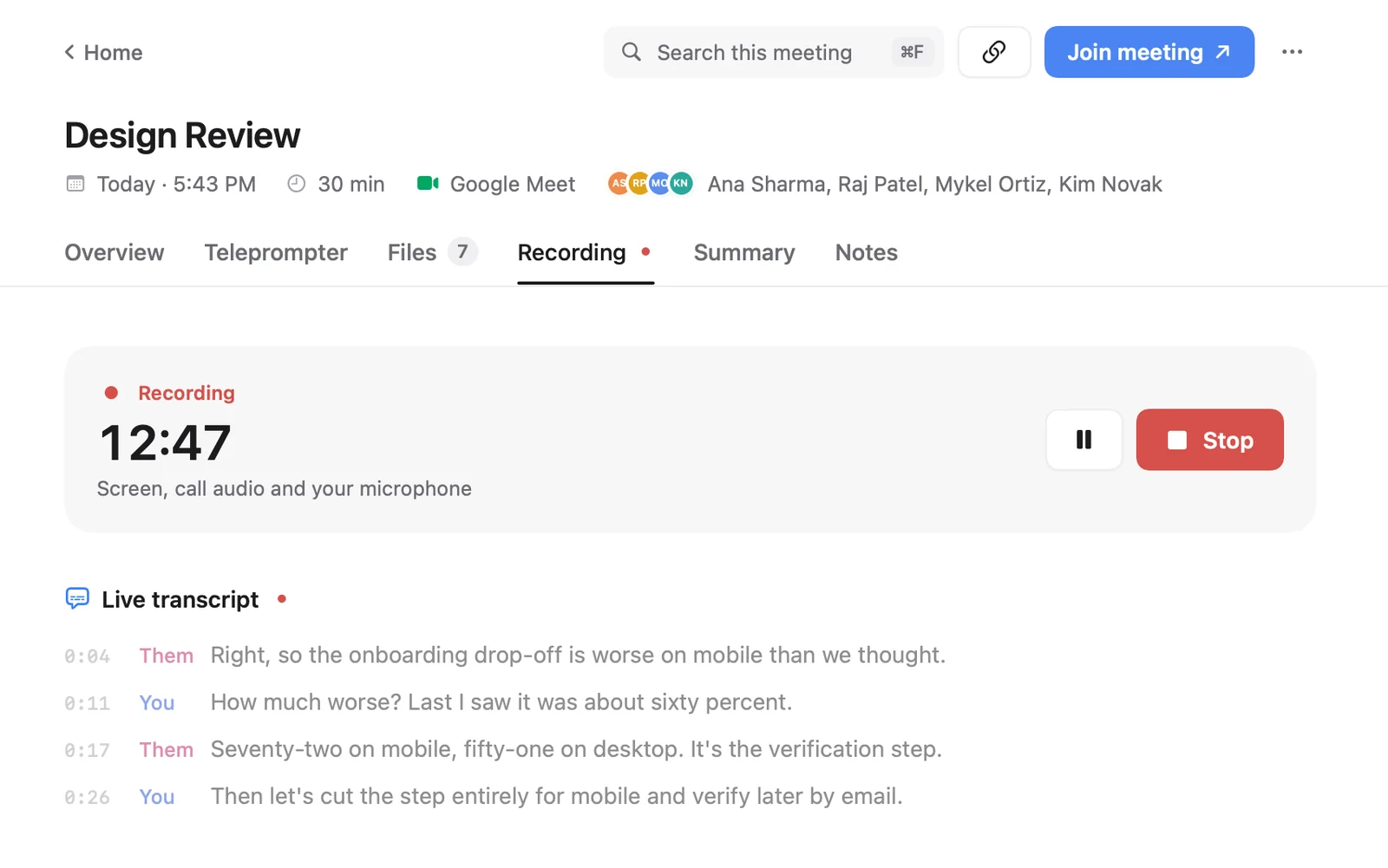
If you block bots but still want a transcript of your own calls, use a note taker that records on your computer instead of joining the call. Several exist, and even Fireflies offers a desktop app that records system audio instead of sending its bot. Cued is one option for Mac: it records the screen and both sides of the audio through the Mac, transcribes live and writes a summary with action items, all on the device. Nothing joins the call and nothing is uploaded.
No bot also means no automatic notice, so tell people you are recording. Cued is a one-time payment, not a subscription.
Cued needs a Mac with Apple silicon and macOS 15 or later, and is designed for MacBooks with a notch. Cued is a one-time payment, not a subscription: $9 for the first 50 founding members, then $29 with a year of updates.
Questions
How do I disable AI notetakers (Otter, Read AI, Fireflies) from joining our meetings?
Turn on Zoom's waiting room, set Google Meet to Restricted, or keep the Teams lobby on, then don't admit the bot. If it is in your own account, turn off auto-join in the notetaker's settings.
Can someone tell me how to remove Read AI from joining my calls automatically?
In Read AI's Account Settings, under Meeting Recording → Auto-Join Preferences, turn off Auto-join meetings. During a call you can type "opt out" in the chat to make it leave.
How do I stop Otter.ai Notetaker from joining my personal meeting room?
Use a waiting room or lobby so you admit people yourself, and ask the person whose Otter it is to change Default auto-join settings to "Meetings I manually select".
Does Teams block notetaker bots automatically?
Teams detects many external bots and keeps them in the lobby until the organiser admits them. Microsoft says some bots may not be detected, so keep an eye on the lobby.
Does Cued join meetings as a bot?
No. Cued records through your Mac, so nothing appears in the participant list. Tell people you are recording, because no one is notified automatically.
How much does Cued cost?
Cued is a one-time payment, not a subscription: $9 for the first 50 founding members, then $29 with a year of updates.
Try Cued on your next call. Your script in the notch, your call recorded and summarised on your Mac.
Download for MacSources
- Using waiting room during a meeting, Zoom Support
- Managing participants in a meeting, Zoom Support
- Tips to set up business meetings (access types, host management), Google Workspace Help
- Manage external bots and their access to meetings, Microsoft Learn
- Using the lobby in Microsoft Teams meetings, Microsoft Support
- How to remove Fireflies from a meeting (or stop it from joining), Fireflies guide
- Stop Otter Notetaker from automatically joining your meetings, Otter Help
- AI Meeting Assistants (Read.ai and Otter settings), Bridgewater State University IT
- How to turn off settings in Otter.ai and Read.ai, University of North Dakota IT
- How do I disable AI Notetakers (otter.ai, read.ai, fireflies.ai, etc.) from joining our meetings, Zoom Community
- Can someone tell me how to remove read.ai from joining my calls automatically? r/MicrosoftTeams
Related guides
- AI note taker without a bot: how it works and which apps do it
- Is it safe to use an AI notetaker on confidential client calls?
- An Otter.ai alternative for Mac that stays on your device
- A Fireflies.ai alternative that keeps your calls on your Mac
- Do people know when you record a Zoom, Meet or Teams call?